DI-Agent-002 Cloud Services
Design Item ID: DI-Agent-002
Design Item Name: Cloud Services
Related Design Items:
Related API:
- Get agents (GET /api/v2/agents)
- Get namespaces (GET /api/v2/agents/{agentId}/namespaces)
- Run discovery (POST /api/v2/agents/{agentId}/namespaces/{namespace}/workspaces/{workspaceId}/discover)
- Get services (GET /api/v3/agents/{agentId}/namespaces/{namespace}/workspaces/{workspaceId}/services)
- Create snapshot (POST /api/v2/agents/{agentId}/namespaces/{namespace}/workspaces/{workspaceId}/snapshots)
- Promote version (POST /api/v2/agents/{agentId}/namespaces/{namespace}/workspaces/{workspaceId}/snapshots?promote=true)
- Get snapshot details (GET /api/v2/agents/{agentId}/namespaces/{namespace}/workspaces/{workspaceId}/snapshots/{version})
- Get spec (GET /api/v2/agents/{agentId}/namespaces/{namespace}/workspaces/{workspaceId}/services/{serviceId}/specs/{fileId})
Revision History:
| Date | Description |
|---|---|
Description
Section titled “Description”This design item defines the functionality of the APIHUB Agent Cloud Services page. The Agent allows users to discover API documents from Kubernetes services, create snapshots, validate backward compatibility, and promote versions to the APIHUB Portal.
Start Point
Section titled “Start Point”- The user navigates to APIHUB Portal → Agent.
Execution
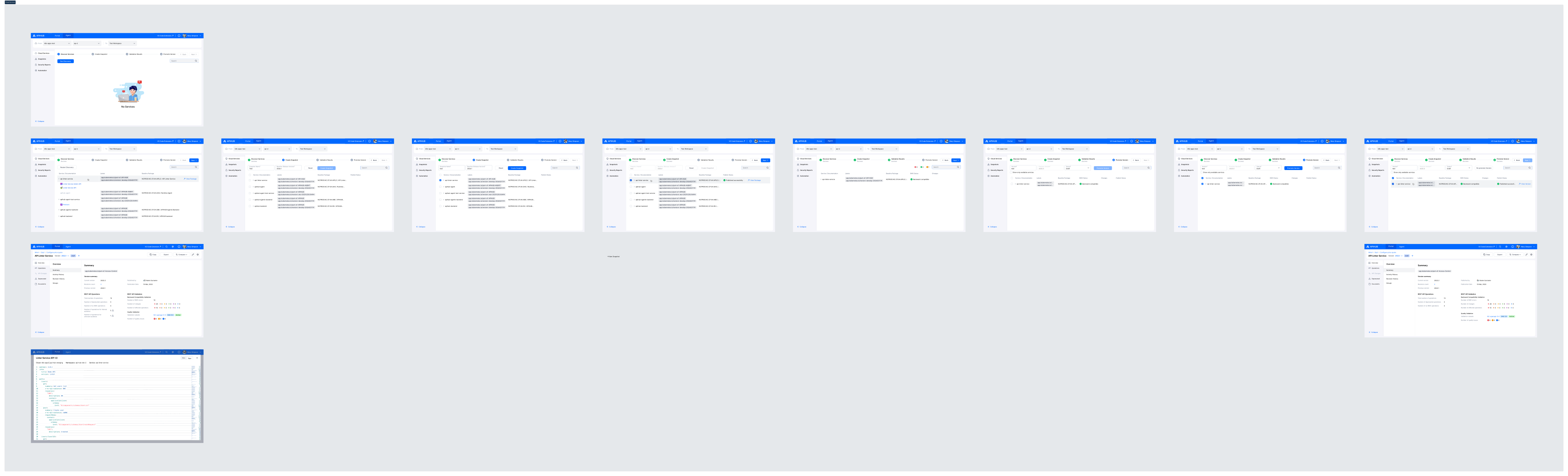
Section titled “Execution”- The system displays the Agent page with a toolbar at the top. The toolbar contains three selectors arranged as: From [Cloud] [Namespace] | To [Portal Workspace].
- The user selects a cloud (agent) from the Cloud dropdown.
- The system displays a list of all registered agents. The user can type to search agents by name.
- The system loads the namespaces available for the selected agent.
- The user selects a namespace from the Namespace dropdown.
- The system displays a list of all namespaces available in the selected agent. The user can type to search namespaces by name.
- The Namespace dropdown is disabled until an agent is selected in the Cloud dropdown.
- The user selects a target workspace from the Portal Workspace dropdown.
- The system displays a list of portal workspaces available in APIHUB. The user can type to search workspaces by name.
- When the user selects a workspace, the system automatically triggers the discovery process for the selected namespace in the context of the selected workspace.
To discover services:
- The system displays the Discover Services step. Initially, if no discovery process has been performed before in the selected namespace/workspace, the page is blank (no services displayed).
- The user clicks the Run Discovery button.
- The system starts the discovery process and displays a loading indicator on the button. The discovery process finds all Kubernetes services in the current namespace and API documents in each service.
- When the discovery process is completed, the system displays a table with the following columns:
- Service / Documentation column:
- List of all discovered services.
- If a service does not contain an API specification, the service is displayed as disabled.
- If a service contains at least one specification, the service is enabled, and the user can expand it to view the API document(s) underneath.
- Labels column: displays all labels discovered for the services.
- Baseline Package column: displays the ID and name of the corresponding package in APIHUB, if any. The user can hover over a service row to reveal a View Package link that opens the package in APIHUB Portal.
- Service / Documentation column:
- If the user wants to re-run the discovery, the user clicks the Restart Discovery button (the button label changes from “Run Discovery” to “Restart Discovery” after a successful discovery). The system re-executes the discovery process and refreshes the results.
To view API document:
- The user clicks on a discovered API document under a service.
- The system opens the API document in a popup dialog. The behavior depends on the API type of the document:
OpenAPI documents
Section titled “OpenAPI documents”- The system opens a specification viewer dialog with the document title as the header and metadata showing Cloud, Namespace, and Service.
- Two view modes are available, toggled via the view mode switcher in the dialog header:
- Doc — rendered interactive documentation view.
- Raw — raw specification source with a navigation tree on the left side.
GraphQL documents
Section titled “GraphQL documents”- The system opens a GraphQL Playground dialog (based on GraphiQL — an in-browser interactive GraphQL IDE).
- The dialog header contains:
- Title: “GraphQL Playground”.
- Metadata line displaying: Cloud, Namespace, Service.
- Endpoint — an editable text field (default value:
/api/graphql-server/graphql). The user can change the endpoint to point to a different GraphQL server path. - Schema — a dropdown to select which schema to view and query against. If the service contains multiple GraphQL
documents, the dropdown includes:
- <Combined Schema> — a merged schema from all GraphQL documents of the service. If merging fails, this option is disabled with a tooltip: “Combined schema is not available due to problems with merging GraphQL schemas”.
- Individual schema options — one per each GraphQL document of the service.
- If the service contains only one GraphQL document, only that single schema is available (no Combined Schema option).
- The Authenticate section (collapsible, expanded by default if no auth token is stored):
- The user expands the section by clicking the Authenticate toggle.
- The system displays the following fields:
- Identity Provide URL (required) — URL of the identity provider.
- Tenant (required) — tenant name (default:
cloud-common). - Username (required).
- Password (required, masked by default; the user can toggle visibility using the eye icon).
- The user fills in the fields and clicks the Authenticate button.
- The system obtains an authentication token and stores it locally. The token is then used for subsequent GraphQL requests via the playground.
- The main area of the dialog is the interactive GraphQL playground where the user can:
- Write GraphQL queries in the left editor panel.
- Execute queries by pressing the play button (or Ctrl+Enter).
- View query results in the right panel.
- Use keyboard shortcuts: Prettify query (Shift+Ctrl+P), Merge fragments (Shift+Ctrl+M), Auto Complete (Ctrl+Space).
- Set variables and HTTP headers in the bottom panels (Variables, Headers).
- The view mode toggler (Doc/Raw) is not available for GraphQL documents — only the interactive playground is shown.
AsyncAPI documents
Section titled “AsyncAPI documents”- The system opens a specification viewer dialog with the document title as the header and metadata showing Cloud, Namespace, and Service.
- Only Raw view is available — the raw specification source is displayed. No view mode toggler is shown.
Markdown documents
Section titled “Markdown documents”- The system opens a specification viewer dialog with rendered Markdown content. No view mode toggler is shown.
Other/Unsupported types
Section titled “Other/Unsupported types”- The system displays a “Preview is not available” message with a Download button allowing the user to save the file locally.
To create snapshot:
- The user clicks the Next button after discovering services and documents. The system opens the Create Snapshot step.
- The system displays a table containing services with API documents found in the previous step. Services without API documents are not displayed.
- To create a snapshot, the user performs the following steps:
- The user selects the required services for which snapshots need to be created.
- The user fills in the Snapshot Name field. This name will be used to create a draft snapshot version in APIHUB. The snapshot can subsequently be deleted.
- The user fills in the Baseline (Release Version) field — APIHUB will compare the contracts of the selected Kubernetes services with this version of the reference data.
- The user clicks the Create Snapshot button.
- The system creates the snapshot and displays the publishing status for each service for which a snapshot was created.
- The user can hover over a service row to reveal a View Snapshot link. Clicking it opens the created snapshot in APIHUB Portal.
- If the user needs to create another snapshot, the user clicks the Reset button and repeats steps 3.1–3.4 above.
To see validation results:
- The user clicks the Next button after snapshot creation. The system opens the Validation Results step.
- For each service for which a snapshot was created, the system displays a table with the following columns:
- Service / Documentation — list of services and their API documents.
- Labels — labels discovered for the services.
- Baseline Package — the corresponding package in APIHUB.
- BWC Status — backward compatibility status of the current snapshot relative to the baseline version:
- “Baseline not found” (warning) — when the baseline package is not found in APIHUB.
- “Baseline version not found” (warning) — when the baseline package exists but the specified baseline version is not found.
- “Backward compatible” (success) — when there are no breaking changes.
- “Backward incompatible” (error) — when there are breaking changes.
- Changes — number of changes of each severity type in the current snapshot compared to the baseline version. The
following severity types are displayed:
- Breaking — changes that break backward compatibility (e.g., deleting an operation, adding a required parameter).
- Requires Attention — changes that potentially may break backward compatibility depending on the client implementation. This category also includes breaking changes in operations annotated as no-BWC.
- Deprecated — changes that annotate an operation, parameter, or schema as deprecated.
- Non-breaking — changes that do not break backward compatibility (e.g., adding a new operation or optional parameter).
- Unclassified — changes that cannot be classified as any of the other types.
- Annotation — changes to API documentation that do not affect functionality (e.g., adding/changing descriptions or examples).
- The user can click on the changes summary to open a detailed Change View dialog.
- The user can hover over a service row to reveal a View Changes link. Clicking it opens the comparison of the
current snapshot with the baseline version in APIHUB Portal to see changes in detail.
- If a baseline version was not found for the service, the View Changes link is not available.
Note: You may validate the BWC and store the API contracts in the promote operation only if the Baseline Package field is filled in for the service.
To promote version:
- The user clicks the Next button in the Validation Results step. The system opens the Promote Version step.
- The system displays only services for which a snapshot has been created and which have a baseline package in APIHUB.
- The user can check the Show only available services checkbox to filter the table and display only services for which the user has the appropriate permissions to promote.
- To promote a version, the user performs the following steps:
- The user selects the required service(s). The user cannot select a service if they do not have appropriate grants for the baseline package of the service.
- The user specifies the Version field — this will be the new version of the reference data in APIHUB.
- For Release status, the version must match the format YYYY.Q (where YYYY is the year and Q is the quarter). If the format is invalid, the system displays an error message: “The release version must have the format: YYYY.Q, where YYYY is the year, Q is the quarter of the year”.
- See DI-Agent-001 Version Validation for detailed validation rules.
- The Previous Version field is pre-filled with the value of the baseline version specified during the snapshot creation step. This field is read-only.
- The user selects the Status field (Draft or Release) — this will be the status of the promoted (published) version in APIHUB.
- The user clicks the Promote Version button.
- The system publishes the found API documents to APIHUB. All labels for promoted services are also published to APIHUB as version labels.
- When the version is promoted, the system displays the publishing status. The user can hover over a service row to reveal a View Version link. Clicking it opens the published version in APIHUB Portal.
- If the user needs to promote another version, the user clicks the Re-promote Version button (the button label changes from “Promote Version” to “Re-promote Version” after a successful promotion) and repeats steps 4.1–4.5 above.
Mockups
Section titled “Mockups”