Portal Overview
APIHUB Portal is centralized repository for storing and managing API specification. Portal allows you to:
- Upload API specifications, Markdown files and any other artifacts related to API.
- View API specifications and Markdown files in human-readable format.
- Compare API
- Check backward compatibility of API
- Track deprecated entities from API specifications
Currently Portal allows working with the following API specifications:
- OpenAPI specification with versions 2.0 and 3.0.
- The system does not support Swagger 2.0 in its pure form, when publishing Swagger 2.0 the system converts the document to version 3.0 and all further work performed as with OpenAPI 3.0.
- You can publish OpenAPI 3.1 in Portal but with reduced functionality: 3.1 version specific feature are not supported in APIHUB.
- You cannot compare OpenAPI 3.0 with 3.1 and vice versa.
- GraphQL specifications and introspections of release October 2021.
You can also upload Markdown files and Portal will render content of the files. All other files can be uploaded to Portal (and downloaded after that), but Portal does not allow viewing the content of these files or performing any other operations on them.
Home Page
Section titled “Home Page”The home page is displayed as you log into the application. The home page of the Portal contains 4 spaces in the left panel:
- Favorite - shows the list of favorite packages, dashboards and groups. See more in Favorite section.
- Shared - shows the list of packages and dashboards for which you have directly assigned role. See more in Shared section.
- Private - your personal workspace to which by default only you have access. See more in Private section.
- Workspaces - shows the list of all workspaces. Workspaces provide a logical separation for different projects, teams, or departments within the organization. See more in Workspaces section.
- Favorite workspaces - shows the list of favorite workspaces for quick navigation.
Favorite
Section titled “Favorite”You can add a group, package, or dashboard to your favorites list for quick access.
- Click the star icon next to the group, package, or dashboard you wish to add to your favorites. The appropriate group/package/dashboard will be displayed in Favorite tab. To remove an item from your favorite list, click the star icon next to the already favorited group, package, or dashboard.
Please pay attention that favorite workspaces are not displayed on Favorite page, they are displayed in separate list in favorite workspace section.
Shared
Section titled “Shared”Shared menu allows you to see all packages/dashboards for which you have directly assigned a role.
Workspaces
Section titled “Workspaces”Workspace is a first level grouping entity for groups, packages and dashboards. Workspaces provide a logical separation for different projects, teams, or departments within the organization. They enable the grouping of related APIs and provide a hierarchical structure for better organization and management. Only system administarator can create workspaces.
If you open any workspace, you see hierarchical structure of all its groups, packages and dashboards.
Group is an entity that allows you to logically group packages, dashboards and other groups. Group can be created under workspace or another group. To create group:
-
Open workspace.
-
Click Create button and then select Group.
-
In the opened “Create Group” popup, specify the required information:
- Name - human-readable name of the group.
- Workspace/Parent Group - by default, current workspace/group is selected, which means that a new group will be created right under this workspace. If you need to create a group under another group, then select such group in this field (Only groups under the current workspace can be selected).
- Alias - a short alias, will be used in internal ID creation. Must be unique only inside the parent group. It can’t be changed afterward.
- Description - package description.
- Private option - if checked, then group will be private and by default will be visible to you only.
-
Click Create button.
Package is a versioned entity where you can publish API documentation. See more about packages in Packages section.
Dashboard is a virtual package that provides links to already published package versions or other dashboard versions. Dashboards do not have their own API documents, it only accumulates API documents from linked package/dashboard versions. See more about dashboards in Dashboards section.
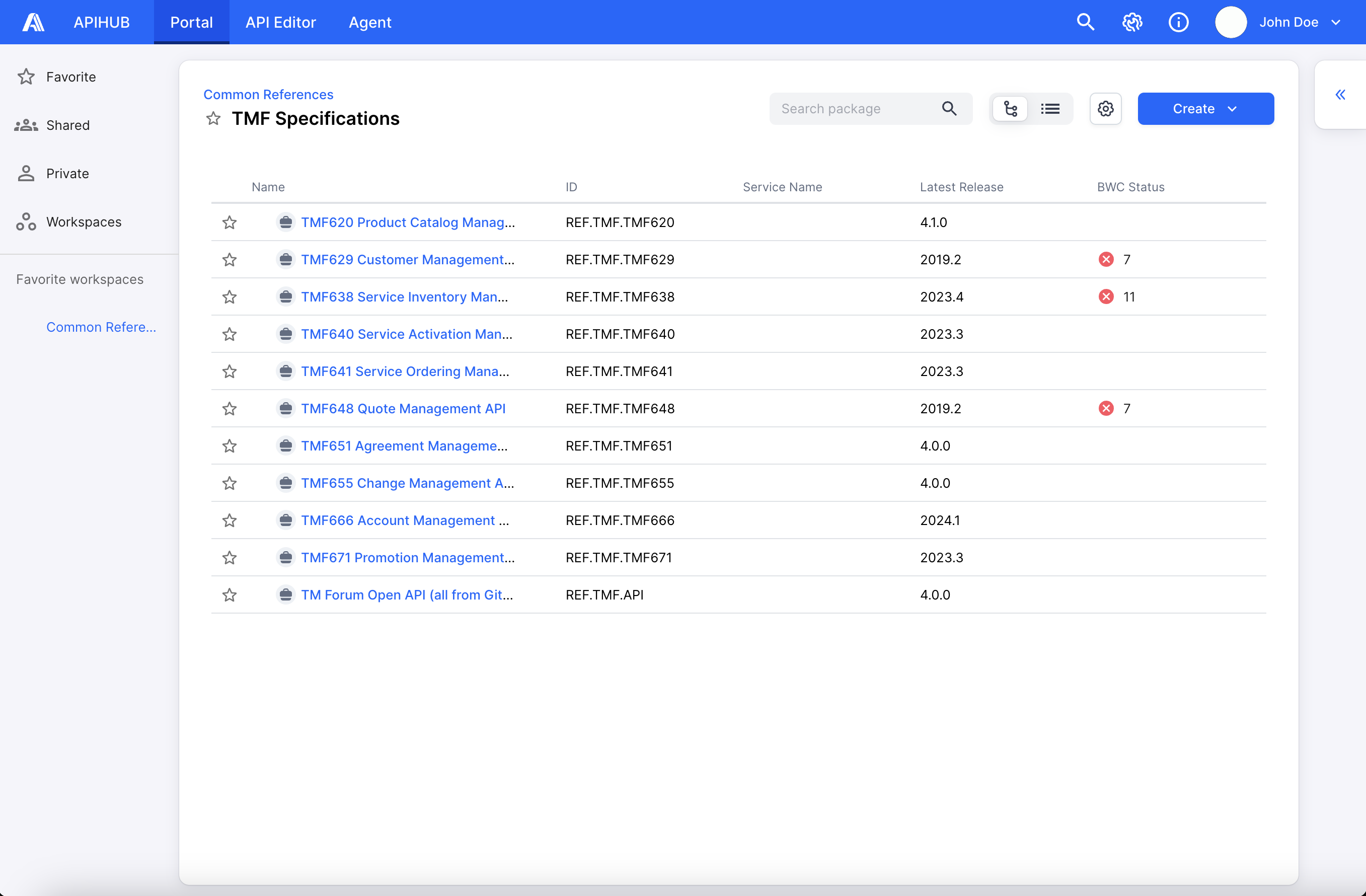
Private
Section titled “Private”The Private menu is a personal private workspace to which only you have access.
- Click Private menu in the left panel. The system opens the page with Create Private Workspace button, if you do not have private workspace.
- Click Create Private Workspace button.
Other users do not have read access to the workspace and all groups/package/dashboard inside your private workspace. However, you can give permissions to work with groups/packages/dashboards for other users (see the User Access Control section below), but permission cannot be given to the entire workspace.
Only one private workspace can exist per user and you have an Admin role for this space.
Global Search
Section titled “Global Search”You can search API operations, documents or packages if you do not know specific location of required entity.
- Click search icon in the Portal header. The right sidebar with global search is opened.
- Specify search criterion in the search field and click Enter.
By default, APIHUB searches API operations. If you need to find documents or packages, then select appropriate tab.
You can reduce search scope using filters. There are two sections with filters:
-
Generic filter parameters - allows you to reduce scope of packages/package version where search will be performed:
- Workspace - allows selecting one existing workspace.
- Group - allows selecting one group from the specified workspace.
- Package - allows selecting one package from the specified group.
- Package version - allows specifying required package version or select version from the specified package.
- Version status - allows selecting one or more statuses from Draft and Release to filter package versions.
- Version publication date - allow specifying period of time when package version was published.
-
API specific parameters - if you need find API operation of specific type then you can use this filter:
- API type - allow selecting one API type - REST or GraphQL.
- Search scope (available for REST operations only) - allows selecting the place(s) in operation where search shall be performed: response or request
- Detailed search scope (available for REST operations only) - allows selecting the place(s) in request/response of operations where search shall be performed.
- Method (available for REST operations only) - allows selecting required HTTP method(s): GET, POST, PUT, PATCH, DELETE.
- Operations type (available for GraphQL operations only) - allows selecting required operation type(s): query, mutation, subscription.
Global search does not search API operations and documents in dashboards, because dashboards do not have their own files and operations. Dashboard also cannot be selected in the filtering panel. However, you can search for dashboard itself in Packages tab.
Activity History
Section titled “Activity History”APIHUB records events that users take on packages, dashboards, groups and workspaces. APIHUB tracks the following events:
- package/dashboard/group/workspace was deleted
- package/dashboard/group/workspace was removed
- user with some role(s) was added to the package/dashboard/group/workspace
- user with role(s) was removed from the package/dashboard/group/workspace
- list of roles was updated for the user in the package/dashboard/group/workspace
- API key was generated in the package/dashboard/group/workspace
- API key was revoked from the package/dashboard/group/workspace
- new version was published in the package/dashboard
- versions was deleted from the package/dashboard
- new revision was published in the package/dashboard
- version meta (status, labels) was updated in the package/dashboard
You can see a list of these actions in the Activity History panel, which is available on Favorite, Shared, Private pages and on a page with specifically selected workspace. Activity history panel shows all actions that were performed in the currently displayed package/dashboard/group/workspace.
Packages
Section titled “Packages”A Package is a versioned entity where you can publish API documentation. Package can be created under workspace or group. To create a package:
- Open workspace or group.
- Click the Create button and then select Package.
- In the opened Create Package popup, specify all the required parameters. The parameters are the same as for group creation.
You can publish package version with API documents to the Portal in several ways:
- Publish via Portal, please see more about it in Create Package Version section.
- Publish to Portal via APIHUB Agent.
- Publish to Portal using APIHUB VS Code Extension.
Create Package Version
Section titled “Create Package Version”After package creation, the system automatically opens an empty package. You can read about available options to upload documentation by clicking How to upload API documentation.
If package version already have some existing versions, you can create new version by clicking “+” from any package version.
To create new package version:
- Click Create version.
- In the Configure Package Version page, add required documentation by clicking browse or drag and drop documents. If added document is correct OpenAPI specification, GraphQL specification or Markdown file you can preview the document by clicking on it. To remove some added file from the package, you can hover over that file and click Remove.
After all required files are added in the package, you can publish package version:
- Click Publish. In the opened popup fill the required parameters:
- Version - name of the version to publish, in case of the release status, the version must match the mask, which is defined in the package settings.
- Status - status for version to publish, available values are draft and release.
- Labels - multiple value can be specified in the field. You need to click Enter to finish adding label.
- Previous release version - name of the previous release version.
If previous release version is specified, then APIHUB automatically compares two versions. The result of comparison will be displayed on the summary page of the published package version and in API Changes page. See more in API Changes of Package Version section and XXX.
- Click Publish button. The system publishes package version and opens package version view.
Edit Package Version
Section titled “Edit Package Version”For the already existing package version, you can change list of files in this version:
- Open package version and click Edit. The system opens Edit Package Version page.
- Add new documents or remove extra documents.
- Click Publish (see Publish Package Version section).
Copy Package Version
Section titled “Copy Package Version”You can copy package content (source files) from one package version to another package, but you cannot select which files to copy. All files from the source package version are copied to the target package version.
To copy a package version:
- Navigate to the package version that you need to copy.
- Click Copy.
- In the opened Copy Package Version popup fill the following fields:
- Workspace - target workspace. By default, the current workspace is selected.
- Package - target package where you need to copy. You can select any package from the list of packages within the selected workspace.
- Version, Status, Labels and Previous release version - target version info, for details see Publish Package Version section.
- Version, status and labels are predefined with information of current (to be copied) package version.
- Click Copy. Once package will copied, the system shows notification with a link to a target package version.
Package versions
Section titled “Package versions”All published versions of the package are displayed in dropdown version menu and contain the following information:
- Version
- Publication date
- Labels
You can click on the required version to navigate to it.
Package version has left sidebar with the following tabs:
- Overview. See more in Package Version Overview section.
- API Operations. See more in API Operations section.
- API Changes. See more in API Changes section.
- Deprecated. See more in Deprecated Operations in Package Version section.
- Documents. See more in Documents of Package Version section.
Package Version Overview
Section titled “Package Version Overview”The system displays the following menu items for overview tab:
- Summary
- Activity History
- Revision History
- Groups
Summary
Section titled “Summary”Summary section display aggregated information about current package version, which includes following details:
Version summary:
- Current version - name of the current version.
- Revisions count - number of revisions of the version, i.e. how many times version was republished.
- Previous version - previous release version.
- Publication date - date when current version was published.
- Published by - user who published current version.
REST API Operations and GraphQL API Operations sections are displayed only if current package version has at least one REST or GraphQL respectively. The sections shows the following informations:
- Total number of operations - number of operations of current API type.
- Number of deprecated operations - number of deprecated operations of current API type.
- Number of no-BWC operations - number of operations of current API type, which are marked as no-BWC.
REST API API Validation and GraphQL API Validation sections are displayed only if current package version has at least one REST or GraphQL respectively. The sections shows the following informations:
- Number of BWC errors - number of breaking changes compared to specified previous version.
- Changes - number of changes of each severity type.
- Number of affected operations - number of operations which have breaking have changes of the appropriate type.
Activity History
Section titled “Activity History”Activity history section displays list of actions that are made by the users in the current package. In general, it is the same activity history which is displayed on the home page (see more in Activity History section). The only difference is that activity history in the package version shows only events that were performed in this package.
Revision History
Section titled “Revision History”When you publish a new version first time, you create first revision of this version. Every time when you publish version with the same name, new revision of this version is created. All revisions are stored in Portal, and you always can open old revision and check its content. By default, you always work with latest revision. Revision cannot be deleted or changed.
The following information is displayed on the revision history page:
- Revision
- Status
- Labels
- Publication date
- Published by
If you click on any revision (except latest), the system opens this revision. The functionality is completely the same as for latest revision, the only difference is that revision number is displayed near version as <version@revision>. If you hover over such version revision, the system shows message “You are viewing the old revision <revision> of the version”.
Operation Groups
Section titled “Operation Groups”The system allows grouping operations from package version into groups. There are two type of groups - manual and REST path prefix groups.
- Manual groups: This type of group allows you to create group by any criteria that you needed. For example, for product API it can be useful to divide operations by consumers of this API. See more in Manual Groups section.
- REST path prefix groups: This type of group is applicable to REST operations only. Groups are created automatically based on a specified pattern applied to the paths of operations from the current package version. For example, in one package version, you may have APIs with different versions like
/api/v1/...,/api/v2/..., etc., and you want to have a separate group for each API version. REST path prefix groups can be used for this purpose.
All existing groups are listed in Groups menu.
Download operations group
Section titled “Download operations group”You can download group which contains REST API operations as OpenAPI specification(s). The resulted specification will contain only operations from the selected operations group. There are two options of downloading operations group - reduced source specifications and combined specifications. To understand the difference let’s take a look at the following example: package version contains two OpenAPI specifications:
- specification A contains 3 operations:
GET /pets,POST /pet,Delete /pet/{Id} - specification B contains 2 operations:
GET /users,GET /users/{username}
You created a group which includes the following operations: GET /pets, POST /pet, GET /users.
- If you download this group using reduced source specifications option, in the result there will be two files: specification A - that contains only
GET /petsandPOST /pet, and specification B - that contains onlyGET /users. - If you download this group using combined specifications option, in the result there will be one file that contains
GET /pets,POST /pet,GET /users.
Publishing Operation Group as a Package Version
Section titled “Publishing Operation Group as a Package Version”You can publish operations group which contains REST API operations as a package version, thus published package version will contain all operations from the selected operations group.
- Hover over the row with the required group and click the Publish button.
- Fill the required fields in the opened popup:
- Workspace - allows you to select workspace where target package is located. By default, the current workspace is selected.
- Package - allows you to select target package (package where you need to publish the selected operations group) within the selected workspace.
- Version, Status, Labels, and Previous Release Version - target version info, for details see Publish Package Version setion.
- Click the Publish button. The system publishes version and will display the notification once version will be published.
The published package version will contain reduced source specifications for operations from the selected operations group. See details about reduced source specifications in Download operations group section.
Manual Groups
Section titled “Manual Groups”You can manually create group and manually add required list of operations to this group. One operation can belong to multiple groups. Each group can only contain operations of one API type only (e.g., REST or GraphQL). After manual groups are created, it is possible to filter operations by these groups.
To create manual group:
- In Group menu, click on Create Manual Group.
- In the opened Create Manual Group popup fill the following fields:
- Group Name - name must be unique within one API type.
- API Type - type of the API of operations which will be included into the group.
- Description
- OpenAPI Specification Template - field is available only if REST API is selected in API Type field. Otherwise, entire Additional Options section is disabled.
Template is useful if you export group as combined source specification (see more about this in Download operations group section).
- Once you fill the required fields, click Create. The system creates the group and opens popup to add operations in the group.
- In the opened popup, add the required operations to the group by moving operations from the left side of the popup to the right side. To find the required operation(s), you can use filters from the filtering panel or search. Filters and search are applied to the both sides of operations - operation that are not added to the group and operations that are already added in the group.
- Once you have added the required operations to the group, click Save.
To edit manual group parameters:
- Hover over the row with the required group and click the Edit button.
- In the opened popup, modify the necessary fields (e.g., group name, description, OpenAPI specification template).
- Once the changes are made, click Update to save the changes.
To update the list of operations in an existing manual group:
- Hover over the row with the required group and click the Change operations in the group button.
- In the opened popup, you can add or remove operations as needed. To add operations, move them from the left panel to the right. To remove operations, move them back from the right panel to the left.
- Once you have updated the operations list, click Save to apply the changes.
API Operations in Package Version
Section titled “API Operations in Package Version”When you publish OpenAPI or GraphQL specification, the system split the specification to multiple specifications each of which represents one API operation. All further work with the API in the Portal is performed on the API operations, not on the entire specification. Let’s see in details how one specification is converted to operations.
If you publish OpenAPI specification (see the example below), the system creates separate specifications for each operations including information about operation itself and additionally the following information from the original specification:
openapifieldserversobjectsecurityobjectcomponentsobject, but only those objects inside components that are used in current operation- except
components.securitySchemes- this object propagated from source specification as is.
- except
Example of source OpenAPI specification:
openapi: 3.0.3info: title: Petstore (pets) license: name: Apache 2.0 url: http://www.apache.org/licenses/LICENSE-2.0.html version: 1.0.1servers: - url: https://petstore3.swagger.io/api/v3paths: /pet: put: tags: - pet summary: Update an existing pet description: Update an existing pet by Id operationId: updatePet requestBody: description: Update an existent pet in the store content: application/json: schema: $ref: "#/components/schemas/Pet" required: true responses: "200": description: Successful operation content: application/json: schema: $ref: "#/components/schemas/Pet" "400": description: Invalid ID supplied /store/order: post: tags: - store summary: Place an order for a pet description: Place a new order in the store operationId: placeOrder requestBody: content: application/json: schema: $ref: "#/components/schemas/Order" responses: "200": description: successful operation content: application/json: schema: $ref: "#/components/schemas/Order" "400": description: Invalid input "422": description: Validation exceptioncomponents: schemas: Pet: required: - name type: object properties: id: type: integer format: int64 example: 10 name: type: string example: doggie Order: type: object properties: id: type: integer format: int64 petId: type: integer format: int64 quantity: type: integer format: int32 example: 7then in the result of publish, the system creates two operations as separate specifications: Operation 1:
openapi: 3.0.3servers: - url: https://petstore3.swagger.io/api/v3paths: /pet: put: tags: - pet summary: Update an existing pet description: Update an existing pet by Id operationId: updatePet requestBody: description: Update an existent pet in the store content: application/json: schema: $ref: "#/components/schemas/Pet" required: true responses: "200": description: Successful operation content: application/json: schema: $ref: "#/components/schemas/Pet" "400": description: Invalid ID suppliedcomponents: schemas: Pet: required: - name type: object properties: id: type: integer format: int64 example: 10 name: type: string example: doggieOperaion 2:
openapi: 3.0.3servers: - url: https://petstore3.swagger.io/api/v3paths: /store/order: post: tags: - store summary: Place an order for a pet description: Place a new order in the store operationId: placeOrder requestBody: content: application/json: schema: $ref: "#/components/schemas/Order" responses: "200": description: successful operation content: application/json: schema: $ref: "#/components/schemas/Order" "400": description: Invalid input "422": description: Validation exceptioncomponents: schemas: Order: type: object properties: id: type: integer format: int64 petId: type: integer format: int64 quantity: type: integer format: int32 example: 7If you publish GraphQL specification (see the example below), the system creates separate specifications for each operations (root operations type) including information about operation itself and additionally the following information from the original specification:
- schema directives, which are used in the current operation
- types (scalars, objects, interfaces, unions, enums, input objects) which are used in the current operation.
For example, if you publish the following GraphQL specification:
type Query {  """  The operation allows retrieving a list of pets.  """  getPets(    """    The type of pet to filter by.    """    type: String  ): [Pet]
  """  The operation allows retrieving details of a specific pet.  """  getPetById(    """    The unique identifier of the pet.    """    id: ID!  ): Pet}
type Pet {  """  The unique identifier of the pet.  """  id: ID
  """  The name of the pet.  """  name: String
  """  The type of the pet (e.g., Dog, Cat).  """  type: String
  """  The age of the pet in years.  """  age: Int}
scalar ID
then in the result of publish, the system creates two operations as separate specifications: Operation 1:
type Query {  """  The operation allows retrieving a list of pets.  """  getPets(    """    The type of pet to filter by.    """    type: String  ): [Pet]}
type Pet {  """  The unique identifier of the pet.  """  id: ID
  """  The name of the pet.  """  name: String
  """  The type of the pet (e.g., Dog, Cat).  """  type: String
  """  The age of the pet in years.  """  age: Int}
scalar ID
Operation 2:
type Query {  """  The operation allows retrieving details of a specific pet.  """  getPetById(    """    The unique identifier of the pet.    """    id: ID!  ): Pet}
type Pet {  """  The unique identifier of the pet.  """  id: ID
  """  The name of the pet.  """  name: String
  """  The type of the pet (e.g., Dog, Cat).  """  type: String
  """  The age of the pet in years.  """  age: Int}
scalar ID
API Operations page
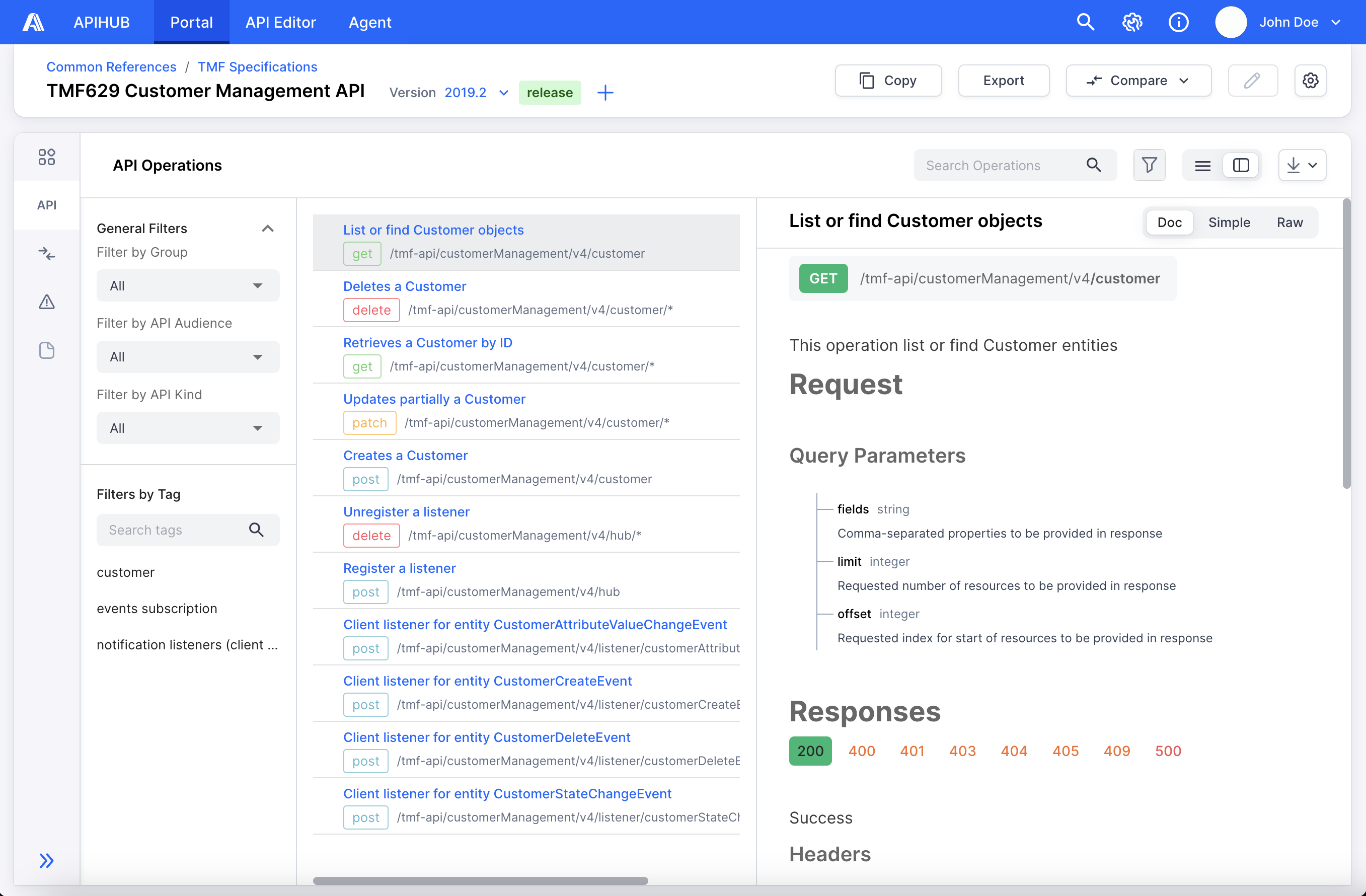
Section titled “API Operations page”API Operations page collects all operations from all OpenAPI/GraphQL specifications published in the current package version. If a package version contains both REST and GraphQL operations, then the API Operations page displays an API type selector. Otherwise, the API type selector is not visible.
The system shows the following information in the table for REST operations:
- Endpoints – shows operation summary, path and method from OpenAPI specification.
- Tag – shows list of tags specified for the operation in OpenAPI specification.
- Kind – backward-compatibility kind of operation.
- Custom Metadata – list of OpenAPI extensions (
x-...) defined in the specification for the operation.
The system shows the following information in the table for GraphQL operations:
- Endpoints – shows operation title, method name and operation type (query/mutation/subscription).
- Operation title is generated automatically (since GraphQL does not have appropriate info) by adding spaces in the method name before capitalized words.
- Tag – shows operation type.
- Kind – backward-compatibility kind of operation.
You can filter operations using the left filtering panel. If at least one filter is applied to the list of operations, then the filter button will highlight it. You can hide the filter panel by clicking the filter button.
- Filter by Group – If at least one (manual or REST path prefix) operations group exists, then you can select an operations group as filtering criteria. See more about operation groups in Operation Groups section.
- Filter by API Kind
- Filters by Tag – section shows a list of all tags from all operations of the current API type. If there is at least one operation without a tag, then the tag list will contain
"default"value.
The system allows searching tags by their name ('contains'criterion, case insensitive).
You can search operations (for REST operations) by title, path and method; and (for GraphQL operations) by title and method.
The system displays a ‘deprecated’ chip near the operation name if the operation is deprecated.
You can switch between list and detailed view (by default, list view is selected):
- List view – list of all operations with information
- Detailed view – allows you to see a preview of the operation content
Export operations to Excel file
Section titled “Export operations to Excel file”You can export a list of API operations to an Excel file:
- In API Operation page click Export.
- Select the required export option:
- All operations – export the list of all operations of the current API type from the current package version.
- Filtered operations – export the currently displayed list of operations.
API Changes in Package Version
Section titled “API Changes in Package Version”If during package version publication, you specified a previous release version, then the system automatically compares this version and calculates changes. APIHUB classifies all changes by severity:
- Breaking – Breaking change is a change that breaks backward compatibility with the previous version of API.
For example, deleting an operation, adding a required parameter or changing the type of a parameter are breaking changes. - Requires Attention – A change requiring attention is a change that potentially may break backward compatibility with the previous version of API, depending on the particular implementation of a client code. This category also includes breaking changes in operations annotated as no-BWC.
- Deprecated – Deprecating change is a change that annotates an operation, parameter or schema as deprecated. Removing a “deprecated” annotation is also considered a deprecating change.
- Non-breaking – Non-breaking change is a change that does not break backward compatibility with the previous version of API.
For example, adding a new operation or an optional parameter is a non-breaking change. - Annotation – An annotation change is a change to enrich the API documentation with information that does not affect the functionality of the API.
For example, adding/changing/deleting descriptions or examples is an annotation change. - Unclassified – An unclassified change is a change that cannot be classified as any of the other types.
API changes page
Section titled “API changes page”API changes page shows the list of all operations that were changed between previous release and current versions. If the package version includes multiple API types, the system will provide a selector to choose the desired API type. If there is only one API type, the selector will not be shown.
Each row of the operation is colored to indicate what change was made to the operation:
- yellow – shows that the operation exists in both the previous and current versions, but some changes were made in the operation.
- red – shows that the operation was deleted in the current version.
- green – shows that the operation was added in the current version.
If the operation was changed, you can see a description of each change that was made in the operation. To see it, expand the (yellow) row with the appropriate operation.
For some changes in the operation, APIHUB does not support generation of human-readable descriptions; therefore, instead of such a description, you may see only a JSON path to the change.
For each operation, the system calculates the number of changes of each severity type. Pay attention that a removed/added operation always has only one change.
The system also displays the total number of operations affected by each severity type. You can filter out operations to see only those operations which contain some severity type(s). To do this, click on the required severity type in the “traffic light” filter.
You can also filter operations by other criteria using the left filtering panel or search. These functionalities are the same as in the API Operations page.
Export API Changes to Excel file
Section titled “Export API Changes to Excel file”You can export a list of changes to an Excel file:
- In API Changes page click Export.
- Select the required export option:
- All operations – export the list of all changed operations of the current API type from the current package version.
- Filtered operations – export the currently displayed list of changed operations.
Deprecated Operations in Package Version
Section titled “Deprecated Operations in Package Version”This functionality allows you to view a list of all deprecated operations or deprecated items (an item that is deprecated inside the operation, e.g., for REST operations – parameters, schema; for GraphQL operation – enum value, field definition) in operations.
If the current package version has multiple API types, the system will provide a selector of API type. If there is only one API type in the package version, the system will not display an API type selector.
For each deprecated operation or deprecated item, the system can calculate the release version from which this operation or item was deprecated. The system can calculate release version from which operation/item was deprecated only if package has a continuous chain of release versions and previous release versions. I.e. if operation is deprecated in 2024.4, the system checks if 2024.4 has specified previous release version (e.g. 2024.3) and if so, then checks if this previous release version has the same operation in deprecated status. And if operation is also deprecated in 2024.3, then again, the system checks if 2024.3 has specified previous release version and so on.
For each deprecated item, the system shows a description of what was deprecated in the operation. To see this description, expand the row with the operation.
Deprecated tab has the same filtering and export functionality as the operations tab.
Documents of Package Version
Section titled “Documents of Package Version”Documents page contains list of all documents published in the current package version.
The unsupported files (docx, pdf, images, etc.) cannot be rendered in the UI, so you can only download them for offline reading.
Comparison
Section titled “Comparison”APIHUB can compare API operations and classify all found changes according to the severity of change. There are following comparison options in the Portal:
- Compare package versions – compare all operations from two versions of any packages. This comparison option helps you find changes between two service versions (if, for example, a package represents a service), which can be useful during an upgrade from one service version to another. See more information in Compare Package Versions section.
- Compare revisions – compare all operations from two revisions of the same package version. This comparison option helps you track the history of changes of the current version. See more information in Compare Package Revisions section.
- Compare operations – compare any two operations from one package version. It can be useful if, for example, you have multiple versions of the same operation in one package version (e.g.,
GET /api/v1/usersandGET /api/v2/usersin one package version) and you want to compare this specific pair of operations. See more in Compare Operations section.
The same comparison options are available for dashboards.
Compare Package Versions
Section titled “Compare Package Versions”You can compare two versions of any package. During this comparison, the system takes all operations from the corresponding package versions and compares them with each other. Mapping of operations between two package versions is carried out by the method and path of operations.
Pay attention that this is the comparison of package versions, not operation versions. For example, if you have two package versions with the following list of operations:
- package version R24.1:
GET /api/v1/users,POST /api/v1/users,GET /api/v1/users/{userId} - package version R24.2:
GET /api/v1/users,POST /api/v1/users,GET /api/v1/users/{userId},GET /api/v2/users/{userId}
If you compare R24.1 and R24.2, you will see changes (if any) in GET /api/v1/users, POST /api/v1/users, GET /api/v1/users/{userId}, and you will see that GET /api/v2/users/{userId} is a new operation. You will not see a comparison between GET /api/v1/users/{userId} and GET /api/v2/users/{userId}.
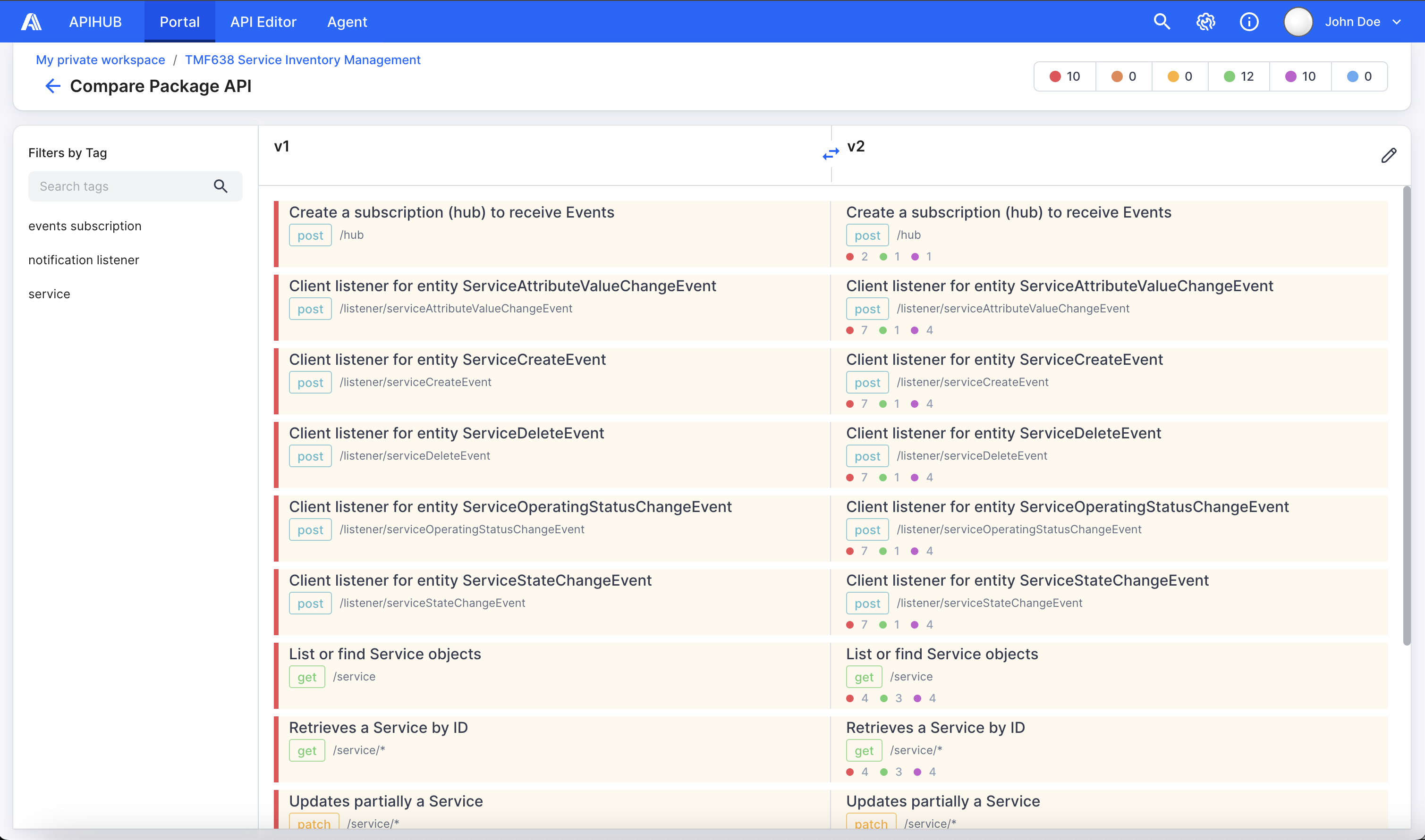
- Navigate to the package version you need to compare.
- Click Compare and select Versions in the dropdown menu.
- In the opened popup, select the required versions you need to compare.
By default, you select versions of the same (current) package. If you need to compare versions of different packages, then click Change Packages, and the system will let you select the required packages. - Click Compare button.
The system opens a page with the comparison of the selected versions. On this page, you can see a side-by-side comparison of all changed operations from the selected versions. For each line (which represents a pair of compared operations, or only one operation if it is new or deleted), you can see the number of changes of each severity type for that specific operation. Each line has its own color showing the change type of the operation: yellow – operation was updated, red – operation was deleted, green – operation was added. In the subheader of the page, the system shows the summary of version comparison (the number of operations that have a specific severity type).
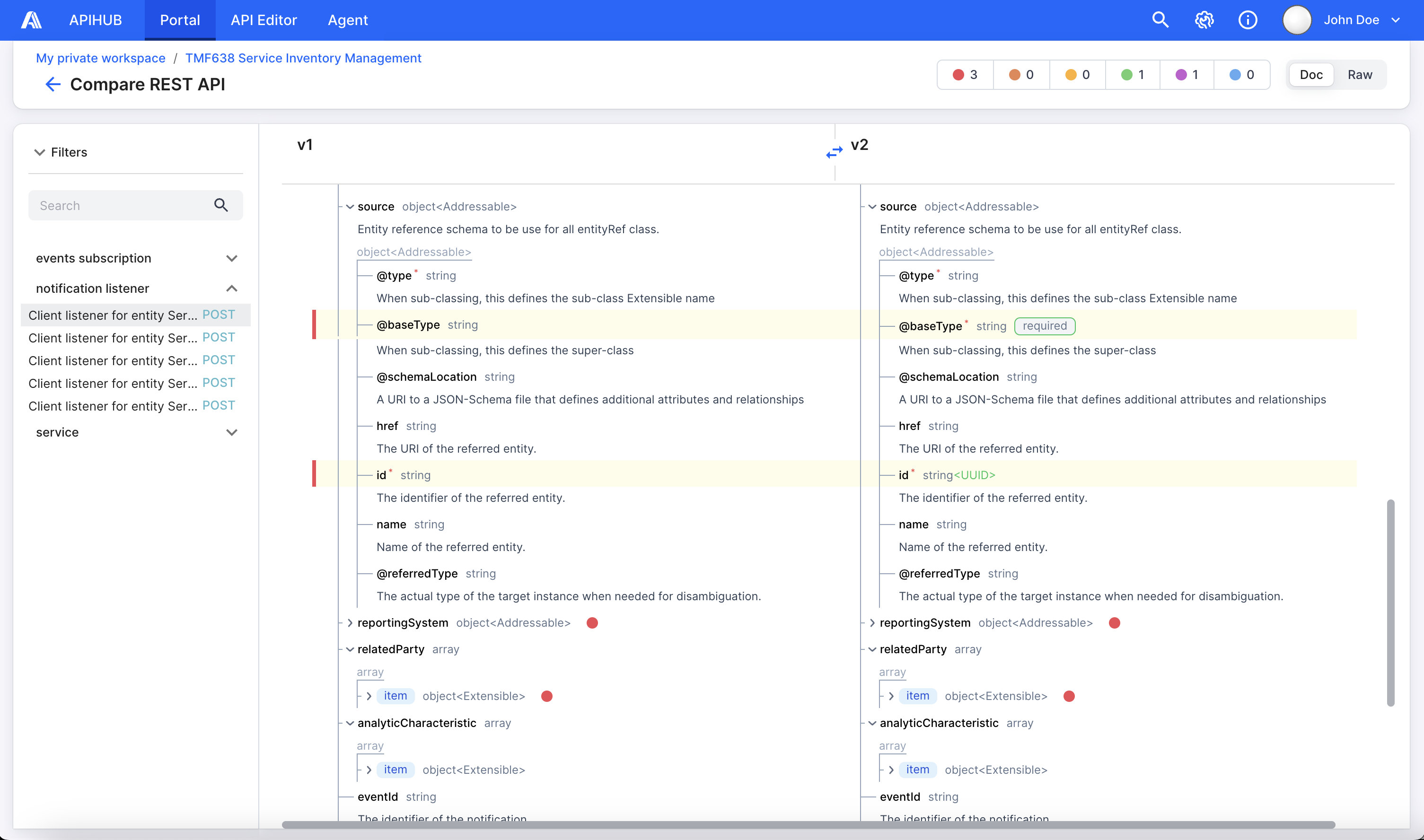
Operations that were not changed between compared versions are not displayed on this page. - To see details of changes in a specific operation, click on the required operation. The system opens a page with user-friendly rendered content of the operation in a side-by-side view.
On this page, you can see what exactly was changed in the API operation. For each change, the system shows (on the left) the severity of this change. In the subheader of the page, you can also see a summary of changes for the current operation. You can switch the view of comparison to Raw to see a side-by-side comparison in YAML or JSON format.
Compare Package Revisions
Section titled “Compare Package Revisions”You can compare two revisions of one package version. This comparison will help you understand the history of changes of a particular version.
- Navigate to the package version whose revisions you need to compare.
- Click Compare button and select Revisions in the dropdown menu.
- In the opened popup, select revisions for comparison and click Compare.
All other functionality of revisions comparison is the same as for package versions comparison
Compare Operations
Section titled “Compare Operations”You can compare any two operations from one package version. It can be useful if, for example, you have multiple versions of the same operation in one package version (e.g., GET /api/v1/users and GET /api/v2/users in one package version) and you want to compare this specific pair of operations.
- Navigate to the package version and open the required operation.
- Click Compare button and select Operations in the dropdown menu.
- In the opened popup, select operations for comparison and click Compare. The system immediately opens a page with a user-friendly rendered content of the operation in a side-by-side view. All other functionality of operations comparison is the same as for package versions comparison.
Basic Principles of Comparison
Section titled “Basic Principles of Comparison”This section will help you understand the mechanism of comparison in the Portal and the approach for calculating the number of changes.
Compare operations, not specifications
Section titled “Compare operations, not specifications”APIHUB Portal provides the ability to compare two package versions/revisions. During comparison, the Portal compares operations, not entire OpenAPI specifications. In APIHUB, one operation document is a self-contained specification containing information only about the current operation. (See more about single operations and how they are obtained in API Operations In Package Version section)
Resolve internal references
Section titled “Resolve internal references”All internal references of operations are resolved during comparison. So if a user has an OpenAPI file with an internal reference as v1 in the example below, and in another version v2 the user changes the schema name from Pet to Pet1 and changes the ref in request and response body schema accordingly to #/components/schemas/Pet1, then comparing initial v1 and v2 will calculate no changes.
v1:
openapi: 3.0.3servers: - url: https://petstore3.swagger.io/api/v3paths: /pet: put: tags: - pet summary: Update an existing pet description: Update an existing pet by Id operationId: updatePet requestBody: description: Update an existent pet in the store content: application/json: schema: $ref: "#/components/schemas/Pet" required: true responses: "200": description: Successful operation content: application/json: schema: $ref: "#/components/schemas/Pet" "400": description: Invalid ID suppliedcomponents: schemas: Pet: title: Pet required: - name type: object properties: id: type: integer format: int64 example: 10 name: type: string example: doggiev2:
openapi: 3.0.3servers: - url: https://petstore3.swagger.io/api/v3paths: /pet: put: tags: - pet summary: Update an existing pet description: Update an existing pet by Id operationId: updatePet requestBody: description: Update an existent pet in the store content: application/json: schema: $ref: "#/components/schemas/Pet1" required: true responses: "200": description: Successful operation content: application/json: schema: $ref: "#/components/schemas/Pet1" "400": description: Invalid ID suppliedcomponents: schemas: Pet1: title: Pet required: - name type: object properties: id: type: integer format: int64 example: 10 name: type: string example: doggieDeclarative approach in calculation of changes
Section titled “Declarative approach in calculation of changes”APIHUB calculates the number of changes using the declarative approach. If an OAS has a shared object (schema/parameters/header in the components object), and this shared object is used in one operation multiple times (via $ref), then one change in this object will be counted only one time for
this operation. However, when comparing in the system there is such a concept as scope. Scope for REST operations is request and response. If a shared object has one change, but this object is used both in the request and in the response, then this change will be considered twice. This was done
because the same change made in the request and in the response can be classified differently. For example, deleting a property in a request is a change that breaks backward compatibility, but deleting a property in a response does not break backward compatibility.
In the example below, shared Order schema is used twice in the “Place an order for a pet” operation (in request and in response). In v2, the petId parameter in the Order schema gets a new format. Thus, comparing versions v1 and v2, the number of changes will be two.
v1:
openapi: 3.0.3servers: - url: https://petstore3.swagger.io/api/v3paths: /store/order: post: tags: - store summary: Place an order for a pet description: Place a new order in the store operationId: placeOrder requestBody: content: application/json: schema: $ref: "#/components/schemas/Order" responses: "200": description: successful operation content: application/json: schema: $ref: "#/components/schemas/Order" "400": description: Invalid input "422": description: Validation exception content: application/json: schema: $ref: "#/components/schemas/Order"components: schemas: Order: type: object properties: id: type: integer format: int64 petId: type: integer quantity: type: integer format: int32 example: 7v2:
openapi: 3.0.3servers: - url: https://petstore3.swagger.io/api/v3paths: /store/order: post: tags: - store summary: Place an order for a pet description: Place a new order in the store operationId: placeOrder requestBody: content: application/json: schema: $ref: "#/components/schemas/Order" responses: "200": description: successful operation content: application/json: schema: $ref: "#/components/schemas/Order" "400": description: Invalid input "422": description: Validation exception content: application/json: schema: $ref: "#/components/schemas/Order"components: schemas: Order: type: object properties: id: type: integer format: int64 petId: type: integer format: int64 quantity: type: integer format: int32 example: 7Circular references
Section titled “Circular references”If a change occurs in the schema with circular reference, APIHUB counts such change only one time. In the example below, ChangeOfferingCommonPart schema has parameter that references to ChangeOfferingCommonPart. If some parameter in ChangeOfferingCommonPart changes, e.g. if “format: NCID” is removed from ChangeOfferingCommonPart schema, then APIHUB counts only one change, although in reality this causes an infinite number of changes.
v1:
openapi: 3.0.1paths: /api/v1/petManagement/petStore/handlePet: post: tags: - Pet Store Operations operationId: handlePet summary: Handle Pet Operation requestBody: content: application/json: schema: $ref: "#/components/schemas/PetManagementSchema" responses: "200": description: Operation Successfulcomponents: schemas: PetManagementSchema: title: PetManagementSchema type: object properties: petId: type: number format: PID description: Unique identifier for the pet to be managed. ownerInfo: type: string format: OID description: Information about the owner of the pet. petDetails: $ref: "#/components/schemas/PetManagementSchema"No changes in unsupported entities
Section titled “No changes in unsupported entities”When comparing two versions of an operation, APIHUB checks that the operation is written according to the OpenAPI specification. If there are some entities that are not supported in OAS and these entities contain changes when comparing two versions, APIHUB does not calculate such changes. For
example, OAS3.0 does not support the "additionalItems" keyword. If we compare two versions of an operation where one version has no additionalItems in its schema and the other version does, APIHUB will not calculate such changes.
No changes in explicitly specified default values
Section titled “No changes in explicitly specified default values”Some OpenAPI properties have default values and in general they are not written in specification. For example, “deprecated” property by default equals to “false” and “additionalProperties” property has “true” default value.
If user makes changes in specification, where he/she explicitly specifies default value of the property, then APIHUB does not count such change. In the example below, comparison of v1 and v2 will not show any changes.
v1:
openapi: 3.0.1paths: /api/v1/petstore/petOperation: post: tags: - Pet Operations operationId: petOperation summary: Pet Operation requestBody: content: application/json: schema: $ref: "#/components/schemas/PetSchema" responses: "200": description: Operation Successfulcomponents: schemas: PetSchema: title: PetSchema type: object properties: petId: type: number format: PID description: Unique identifier for the pet being managed. ownerInfo: type: string format: OwnerID description: Information about the pet owner. petDetails: $ref: "#/components/schemas/PetSchema"v2:
openapi: 3.0.1paths: /api/v1/petstore/petOperation: post: tags: - Pet Operations operationId: petOperation summary: Pet Operation requestBody: content: application/json: schema: $ref: "#/components/schemas/PetSchema" responses: "200": description: Operation Successfulcomponents: schemas: PetSchema: title: PetSchema type: object properties: petId: type: number deprecated: false # added default value of "deprecated" property format: PID description: Unique identifier for the pet being managed. ownerInfo: type: string format: OwnerID description: Information about the pet owner. petDetails: $ref: "#/components/schemas/PetSchema"Dashboards
Section titled “Dashboards”Dashboard is a virtual package that provides links to already published package versions or other dashboard versions. Dashboards and packages have almost the same functionality, with the one major difference is that dashboards do not have their own API documents, they only accumulates API documents from linked package versions.
To create dashboards:
- Open workspace or group.
- Click the Create button and then select Dashboard.
- In the opened popup, specify all the required parameters. The parameters are the same as for group creation.
Create Dashboard Version
Section titled “Create Dashboard Version”A dashboard as a package is a versioned entity. The difference is that version of a package contains a list of files, while a version of a dashboard contains references to packages or other dashboards.
- After dashboard creation, the system automatically opens an empty dashboard. Click Create version. The system opens Create New Version page. If dashboard already have some existing versions, then click “+” from any dashboard version.
- Click Add Package. In the opened Add Package popup specify the following information: Workspace - select workspace of the package version that you want to add to your dashboard version. Package / Dashboard - package or dashboard from the specified workspace that you want to add to your dashboard version. Version - specific version of the selected package/dashboard.
- Click Add. The system displays list of all included packages/dashboards in hierarchical view. Repeat step 2 if you need to add another package/dashboard version.
You cannot add the same package more than one time, i.e. as soon as you add any package/dashboard version to the dashboard, this package/dashboard will not be available for the selection. However, there can be situation, when you can indirectly add the same packages/dashboard more than one time. For example, there is some dashboard D1 with version v1. The v1 version of dashboard D1 contains link to package P1 with version v1. Also you have another dashboard D2 and you configure version v1 of this dashboard: you add package P1 (with any version) and then you add D1 with version v1 to your dashboard D2. Thus, you Dashboard 2 version v1 contains links to the the same package Package P1 twice (if does not matter whether the same version of P1 is included into dashboard several time or different versions of the same package).
If such situation occurs during configuration of dashboard version, the system highlights all conflicted packages. If you do not resolve conflicts manually and publish such dashboard version, the system will automatically resolve conflicts and will skip some link(s) to the conflicted package. After publication of dashboard version, you can see in Packages menu if some link(s) to package version(s) were automatically skipped.
Publish Dashboard Version
Section titled “Publish Dashboard Version”After you configured your dashboard version, you can publish it by clicking Publish. The publication process for dashboard version is the same as for package version, see more details in publish package version section.
Edit Dashboard Version
Section titled “Edit Dashboard Version”You can edit content of already published version. To do this:
- Navigate to required dashboard version and click Edit.
- Add or remove dashboard/package version and click Publish.
Copy Dashboard Version
Section titled “Copy Dashboard Version”You can copy content of dashboard version (i.e. links to package/dashboard versions) to another version within the same or another dashboard. The flow is the same as for packages, see more information in Copy Package Version section.
Dashboard versions
Section titled “Dashboard versions”All the features for dashboard are almost the same as for package version. This section only covers those features that are different or missing in the package version.
Package menu. Dashboard version has page with its configuration, i.e. page with the list of all package/dashboard versions included into current dashboard version. There situation may occur when your dashboard version has reference to the package/dashboard version which was deleted after you published you dashboard version. In this case the system will warn you with a special icon. On the current page you can also see if some of the package/dashboard version was not included in the dashboard version due to conflict. This case was described in details in Create Dashboard Version section.
Compare dashboard versions. When you compare package versions, initially you see list of all changed operation compared side-by-side. In dashboard versions comparison, before mapping of operations between versions and comparing them, there is one more step - mapping of packages included into compared dashboard versions. So initially the system takes all packages included into compared dashboard versions and maps them by package identifier. If any package was missing from the previous version of the dashboard but was added to the current one, then that package is considered an added package and all operations from that package version are also considered as added operations. The same thing if package was present in the previous dashboard version but was removed from the current one, then that package is considered an deleted package and all operations from that package version are also considered as deleted operations. If package exists in both compared dashboard versions, the system compares operation between these package versions.
Operation Content View
Section titled “Operation Content View”APIHUB Portal can render content of API operation in different views:
- Doc view - user friendly interactive view of operation content. This view helps to understand content of operation for the user without knowledge of API specification notation or specific format of specification.
- Simple view - the same as Doc view but without such schemas information as description, examples, validators, enums and so on. I.e. in particular the system show only property names, types, and whether property is required and/or deprecated.
- Graph view - diagram like view of schemas. The view is available only for REST API.
- Raw view - operation content in YAML or JSON format for REST operation and in GraphQL format for GraphQL operations.
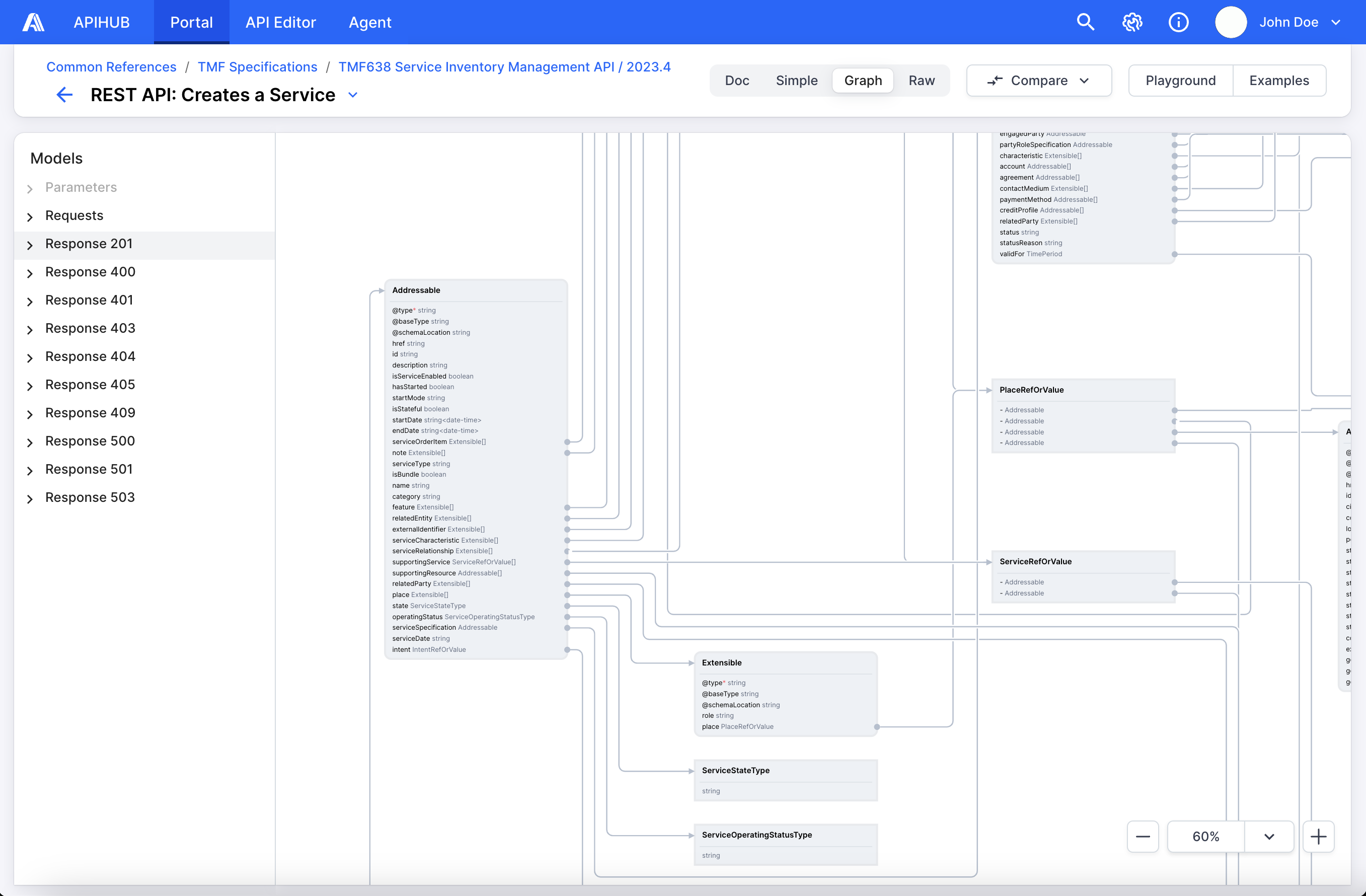
Examples for Request and Response Body of REST operations
Section titled “Examples for Request and Response Body of REST operations”Portal can automatically generate an example for the request and response body. The examples are generated in JSON format based on the request/response schema specified in the API specification. The values for example generation are also taken from the specification. E.g. if your property has an example parameter, it will be taken as the value; if there is no example, the default value will be taken; if there is no default value, one of the enumeration values will be taken; and if you do not have any additional information for the property except the type, its type will be used as the value for the example.
If your request/response schema specifies an “examples” object, you will see those example(s) from the specification.
- Open REST operation for which you need to send a request.
- Click Examples.
- Select Request Example or Response Example tab to see appropriate examples. In Response Example tab you can also select response code for which you want to see examples.
REST API Playground
Section titled “REST API Playground”Playground is a tool that allows you send a REST request to a server, so you can easily test APIs on your real data. To send a request, you do not need to configure the parameters manually, all the request parameters will be taken directly from the API specification. Therefore, you only need to specify the parameter values. The server URL will also be automatically selected from the specification, if any. However, if the specification does not contain any server information, then you can manually specify any URL in the playground.
Pay attention, that since request parameters are taken from specification, you cannot add or remove parameters in the playground itself.
- Open REST operation for which you need to send a request.
- Click Playground.
- In the opened sidebar, select the required sever in the upper field or click Add Custom Server button to add the new one.
- Fill the required request parameters and click Send. The response will be displayed in the same sidebar of playground.
Group, Package and Dashboard Settings
Section titled “Group, Package and Dashboard Settings”Settings page helps you to set and configure group/package/dashboard parameter. To open settings page, you can click gear icon on main page of Portal near required group, package or dashboard. For packages and dashboards, you can also open the required package/dashboard and click the gear icon in the upper-right corner.
The below tabs are available in the group, package and dashboard settings:
- General - contains general information about group/package/dashboard.
- API Specific Configuration - allows you to configure some features related to API operations. This tab is available only for packages, since it is the only entity that can contain its own API specifications.
- Versions - contains information about all versions from the current package/dashboard and allow you to manage them. This tab is available only for packages and dashboard.
- Access Tokens - allows you to generate API key to work with appropriate group/package/dashboard via integrations.
- User Access Control - allows you to manage members of group/package/dashboard and their roles.
General
Section titled “General”The General tab contains general information about group/package/dashboard. You can edit some information by clicking Edit button:
- Name - short name of the package.
- Service Name - this parameter is required if you want to publish version to APIHUB via Agent. The specified service name in the package shall be equal to the service name in k8s. APIHUB Agent uses this service name to map the microservices, discovered in the environment, and baselines (reference data) packages, configured in Portal. Once a service name has been added, it can only be changed directly through the database.
- Visibility - you can make group/package/dashboard public or private.
- Public - any APIHUB user has read access to the package/dashboard content by default.
- Private - by default only the package/dashboard creator has access to the entity.
- Description - additional information about the package.
On General tab you can also delete current entity by clicking Delete button.
API Specific Configuration
Section titled “API Specific Configuration”The API Specific Configuration tab allows you to configure some features related to API operations. This tab is available only for packages, since it is the only entity that can contain its own API specifications.
REST Path Prefix for Grouping by Version. This parameter will allow you to automatically group operations into operations groups; see more about operation groups in Operation Groups section.
The parameter allows you to define custom regular expression, which will be applied to the paths of REST operations. This expression must begin and end with a slash (/) character and contain the {group} keyword. For example: /api/{group}/. The system will look for the {group} entry in the REST operation paths during the publication of the package version. All found matches will form a list of groups that will include the corresponding operations.
For example, you have 3 operations - GET /api/v1/packages, GET /api/v1/package/{packageId} and POST /api/v2/packages. If you specify REST Path Prefix for Grouping by Version as /api/{group}/, then the system creates two groups v1 and v2:
- v1 group contains GET /api/v1/packages and GET /api/v1/package/{packageId} operations.
- v2 group contains POST /api/v2/packages operation.
When you specify value of the parameter, there is an option “Recalculate groups in all published versions”. If you select it, then after saving the value of the parameter, the system re-calculates groups for all existing versions of current package. If you do not select recalculate option, then configuration will be applied only for the newly published versions.
Versions
Section titled “Versions”The Versions tab contains a list of all versions published in the current package or dashboard. You can edit status and/or labels of the version, to do this, hover over the row with the required version and click Edit.
On the current page you can also delete version (with all its revisions). To do this, hover over the row with the required version and click Delete.
Access Tokens
Section titled “Access Tokens”API key allows you to authenticate to APIHUB when using APIHUB API. Unlike a Bearer token or personal access token, an API key does not identify the principal (user). Instead, it is primarily used to identify the calling project—such as an application or website—making the APIHUB API call. API key is associated with a specific workspace, group, package, or dashboard, limiting its scope. API key does not have a period of life and it must be stored on a client side because it shows only once after generation.
To generate an API key, fill the following fields:
- Name - unique API key name.
- Roles - optional field. This field defines the role(s) (i.e. set of permissions) associated with the API key. Multiple values are allowed. If you do not specify a role, the roles of the user who generated the token will be used by default.
- Created For - owner of the API key. By default, owner of key is current user.
Once you fill in the required fields, click the Generate button. The system generates the token and displays it. If you leave the page or reload it, the token is not shown again.
To delete API key, hover over the API key and click Revoke.
User Access Control
Section titled “User Access Control”User Access Control tab allows you to manage members of group/package/dashboard and their roles.
- User role is an entity with a specific set of permissions. You can always see list of available roles and their permissions if you click on question mark on User Access Control page. Roles have hierarchical structure, so even if you have permission to assign roles to the users, you cannot assign the role which is higher than your own role.
- Member is a user which is added to the package/dashboard/group with some role(s). One member can have multiple roles in this case, the list of permissions from each specified role will be combined for the current user. Member’s roles are inherited from parent groups and workspaces. If some role was assigned to the user, for example, in the group, then it is impossible to remove this role on the child package/package/dashboard. However, you can add additional role on the child package/package/dashboard.
To add a new member to the package:
- Click Add User.
- In the opened popup, specify the required user and role. You can selecting one or multiple users and roles. You cannot assign roles that are higher than your own role in the current group/package/dashboard.
- Click Add.
To update the role of an existing member:
- Check or uncheck checkbox at the intersection of the desired user and role. You can alway undo the current action by clicking Undo button in the notification.
To remove a member from the package/dashboard/group:
- Hover over the row of the required member and click Delete.
- You cannot remove a member from the package the member has at least one inherited role or if member have at least one role that is higher than your own role in the current package/dashboard/group.
My Profile
Section titled “My Profile”My Profile page contains your personal settings of APIHUB. To access this page, click on your username located in the top-right corner of the portal header and select My Profile.
The following tabs are available in the My Profile page:
- Personal Access Tokens – allows you to manage your personal access tokens.
Personal Access Tokens
Section titled “Personal Access Tokens”Personal access tokens are an alternative to using API key or Bearer token for authentication to APIHUB when using APIHUB API. Personal access tokens are designed to access APIHUB resources on your behalf.
To generate a personal access token:
- Open Personal Access Tokens tab in My Profile page.
- Enter a unique token name and select the expiration date.
- Click Generate button. The system generates the token and displays it. Copy and store the token securely, as it will only be displayed once. If you leave the page or reload it, the token will no longer be shown.
When a token expires, it becomes inactive and can no longer be used to authenticate to APIHUB.
Note: You can have up to 100 personal access tokens. If you already have 100 tokens, you must delete some before generating a new one.
To delete the personal access token, hover over the token and click Revoke.