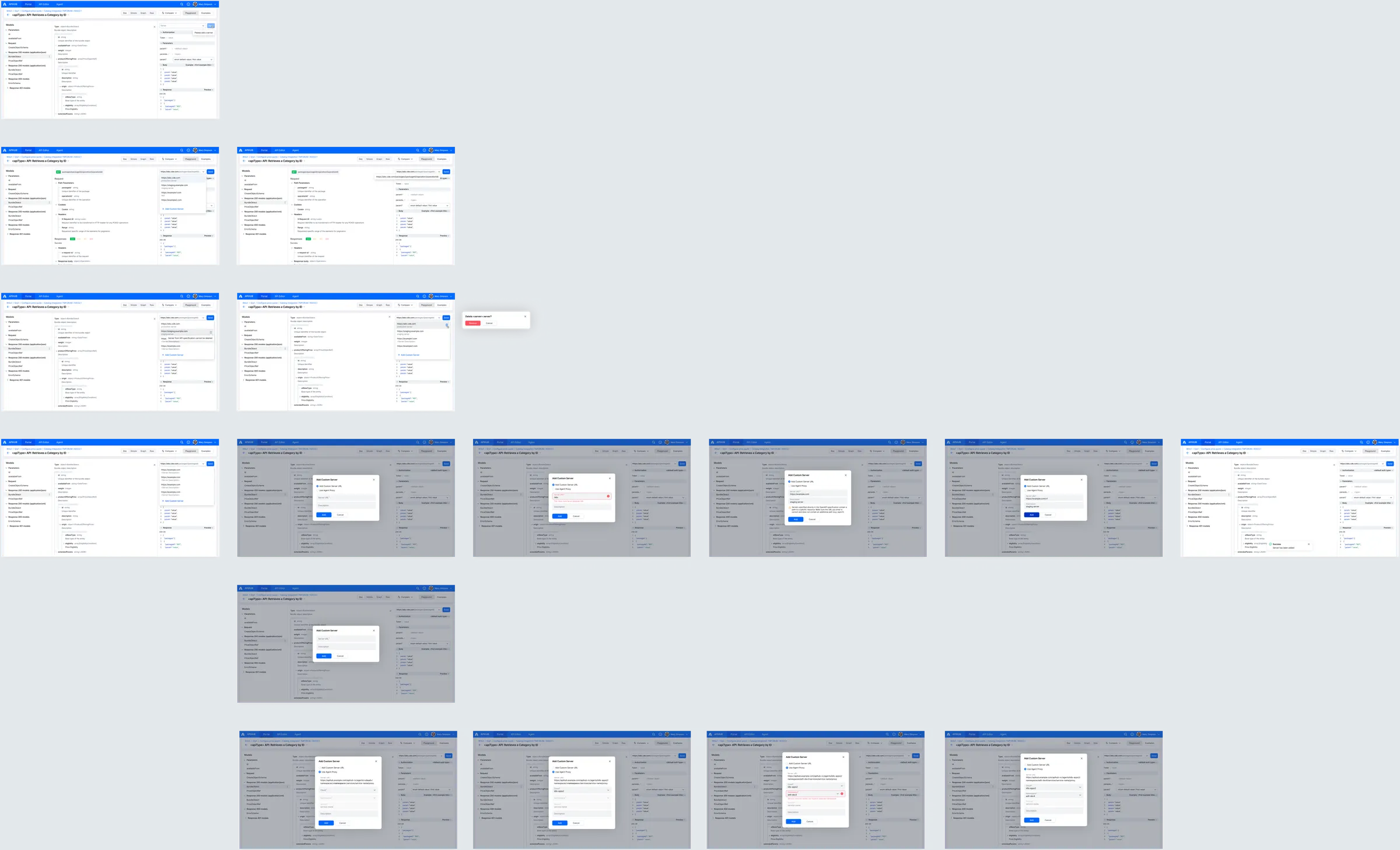
DI-Portal-OPVIEW-002 Playground
Design Item ID: DI-Portal-OPVIEW-002
Design Item Name: Playground
Related Design Items:
Related API:
- Proxy endpoint for try it in case of non-cloud environments (GET /playground/proxy)
- Proxy endpoint to service (GET /agents/{agentId}/namespaces/{name}/services/{serviceId}/proxy/{path})
- Get list of all Agent instances (GET /api/v2/agents)
- Get Namespace list (GET /api/v2/agents/{agentId}/namespaces)
- Get list of service names (GET /api/v2/agents/{agentId}/namespaces/{name}/serviceNames)
Revision History:
| Date | Description |
|---|---|
| 14.04.2025 | Improvements of working with custom servers in https://github.com/Netcracker/qubership-apihub/issues/127 |
Description
Section titled “Description”The Playground functionality allows users to send REST requests to a server, making it easy to test APIs with real data. Users don’t need to manually configure request parameters, as all parameters are automatically derived from the API specification. This means users only need to provide the parameter values. If the specification includes a server URL, it will be selected automatically. However, if no server information is provided in the specification, users can manually enter a custom URL. Since request parameters are defined by the specification, users cannot add or remove parameters directly within the Playground.
Note: Playground functionality is only available for REST operations.
Start Point
Section titled “Start Point”- User navigates to APIHUB Portal → workspace → group → package version → API Operations
Execution
Section titled “Execution”- The user clicks on operation.
- The system opens the Doc view.
- User clicks Playground button.
- The system opens right sidebar with playground.
- User selects server, specifies parameter values and/or request body and clicks Send.
- The system sends the request to the specified server and shows the response in the Response section.
- API to send request:
- GET /playground/proxy
- (see “Work with Server field” section > Flow 3) GET
/agents/{agentId}/namespaces/{name}/services/{serviceId}/proxy/{path}
- agentId - id of agent selected in the Cloud field.
- name - namespace selected in the Namespace field.
- serviceId - id of the service selected in the Service field.
- path - endpoint with path and query parameter.
- API to send request:
Work with Server field
Section titled “Work with Server field”Flow 1 - List of servers from API specification:
- The system shows server field in playground section. By default, server field is prefilled with the first server from
the servers list.
- If the server field is empty, then the system disables the Send button and shows a tooltip on hover: “Please add a server”.
- In the server field is filled, the system shows selected server URL concatenated with the current operation path.
- User clicks on the server field, the system displays a list of servers:
- list of servers collected from the specification of currently opened operation (see steps 3-5).
- list of custom servers added manually (see “Flow 2 - Add custom server URL” and “Flow 3 - Add custom server URL using Agent Proxy”)
- To show the list of servers collected from the specification of currently opened operation, the system collects
servers from:
- Operation object - paths.[*].[*].servers.[*]
- If no servers object is specified in the operation object, then from the path item object - paths.[*].servers.[*]
- If no servers object is specified in either the operation object or the path item object, then from the document level - servers.[*]
- If the server URL, from the API specification of currently opened operation, contains variables (e.g., https://{abc}.example.com), the system generates all possible combinations of the URL using the available variables.
- If the server URL is relative URL, then the system skips such a server.
- For each server in the list of servers, the system shows caption:
- caption for the server from currently opened operation is value from appropriate servers description field if any.
- if the server’s description is not specified in the specification, then the system shows dash as caption.
Flow 2 - Add custom server URL:
-
User clicks the server field and clicks the Add Custom Server button.
-
The system opens the Add Custom Server popup:
-
If the current package has a service name, then the system shows a combo box with two options:
- Add Custom Server URL – selected by default.
- Use Agent Proxy
-
If the current package does not have a service name, then only the following input fields are displayed in the popup:
- Server URL – required field
- Description
- An info icon appears near the ‘Add Custom Server’ heading. Hovering over the icon displays an informational
message:
“Only adding a custom server is available. To use the Agent proxy, specify the service name for the current <package type>.”
-
When the popup is opened, the system checks whether the servers specified in the OpenAPI specification of the current operation contain either:
- An absolute URL with a subdirectory (e.g.
https://test.com/api/v1), or - A relative URL (e.g.
/api/v1).
If at least one server URL in the specification contains a subdirectory or relative path, then the system immediately shows the following info message (even before the user enters a value in the Server URL field):
“Servers specified directly in the OpenAPI specification contain a path to a specific resource. Make sure the URL you enter is correct, and you may need to add an additional path (e.g. /api/v1)”.
- Here,
/api/v1represents the first subdirectory or relative path from the specification.
- An absolute URL with a subdirectory (e.g.
-
-
User specifies a value in the Description field only and clicks Add.
-
The system shows an error message for the Server URL field:
“The field must be filled.”
-
User specifies a relative URL in the Server URL field and clicks Add.
-
The system shows an error message for the Server URL field:
“The value must be an absolute URL.”
-
User specifies a valid absolute URL in the Server URL field and clicks Add.
-
The system adds the server and shows the notification:
“Server has been added”,
and selects this server in the server field.- The server is added at the end of the server list.
- If the user specified a value for the Description field, then the system shows it as the server caption; otherwise,
it shows a dash (
-) as the caption.
-
The system saves the server in local storage.
Flow 3 - Add Custom Server URL using Agent Proxy:
This flow is only available if the current package has a service name.
-
User clicks the Server field and then clicks the Add Custom Server button.
-
The system opens the Add Custom Server popup.
-
When the popup is opened, the system checks whether the servers specified in the OpenAPI specification of the current operation contain either:
- An absolute URL with a subdirectory (e.g.
https://test.com/api/v1), or - A relative URL (e.g.
/api/v1).
If at least one server URL in the specification contains a subdirectory or relative path, then the system immediately displays the following info message (before the user enters a value in the Server URL field):
“Servers specified directly in the OpenAPI specification contain a path to a specific resource. Make sure the URL you enter is correct, and you may need to add an additional path (e.g. /api/v1)”.
- Here,
/api/v1is the first subdirectory or relative path found in the API specification.
- An absolute URL with a subdirectory (e.g.
-
User selects the Use Agent Proxy option.
-
The system displays the following input fields:
-
Server URL – a read-only text field that contains the generated server URL.
-
The URL is generated using the following template:
<current server protocol>://<current domain>/apihub-nc/agents/<agentId>/namespaces/<namespace>/services/<service name>/proxy/<additionalPath> -
Based on currently available information, the system generates the appropriate Server URL.
-
Example:
- User is on:
https://apihub.example.com - Service name:
my-service - User opens the popup, only the Service field is populated →
Server URL:
https://apihub.example.com/apihub-nc/agents/<cloud>/namespaces/<namespace>/services/my-service/proxy - When user selects the Cloud,
<cloud>is replaced with the appropriateagentId. - When user selects the Namespace,
<namespace>is replaced accordingly. - When user enters the Additional path, it gets appended to the end of the URL.
- User is on:
-
-
Cloud – required field.
-
Shows a list of available clouds based on the
agentDeploymentCloudparameter from the API. -
API used:
GET /api/v2/agents
-
-
Namespace – required field; disabled until Cloud is selected.
-
Displays a list of namespaces for the selected cloud.
-
API used:
GET /api/v2/agents/{agentId}/namespacesagentIdis the ID of the agent selected in the Cloud field.
-
After selecting a namespace, the system checks if the service from Service field exists in the selected namespace:
-
API used:
GET /api/v2/agents/{agentId}/namespaces/{name}/serviceNamesagentId= agent selected in Cloud fieldname= namespace selected
-
If the service from Service field is not found, the system shows an error:
“Service <service name> not found in selected namespace”
-
-
-
Service – read-only field pre-filled with the service name of the current package.
-
Additional path – optional field.
- Represents the extra path segment to be appended at the end of the generated server URL.
- If provided, it is included in the final server URL as shown above.
-
Description – optional field to specify a custom caption for the server.
-
-
User fills all required fields and clicks the Add button.
-
The system adds the server, shows a success notification:
“Server has been added”
and selects this server in the Server field.- The server is added at the end of the server list.
- If the Description field was filled, it is used as the server caption; otherwise, a dash (
-) is displayed. - The server is saved in local storage.
Flow 4 - Remove custom server URL:
- User clicks Server field and hovers over server that was added from API specification of currently opened operation.
- The system shows disabled Delete button.
- User clicks Delete.
- The system shows tooltip “Server from API specification cannot be deleted.”
- User hovers over server that was manually added (after flow 2 or flow 3).
- The system shows Delete button.
- User clicks Delete.
- The system show confirmation message: “Delete <server> server?”
- User clicks Delete.
- The system deletes the server.
Screen View
Section titled “Screen View”