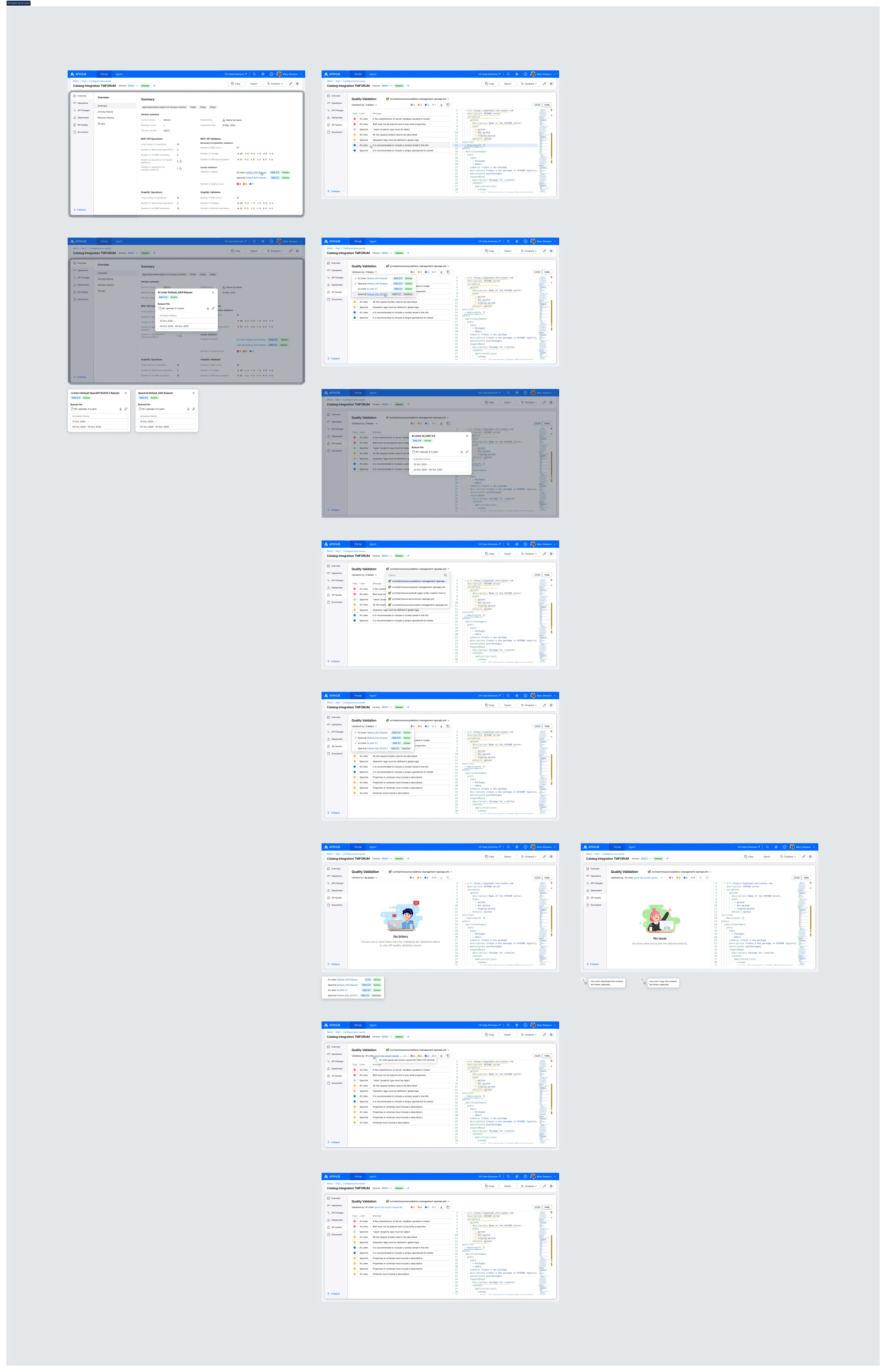
DI-Portal-PKGVER-019 API Quality Validation Result
Design Item ID: DI-Portal-PKGVER-019
Design Item Name: API Quality Validation Result
Related Design Items:
Related API:
- Get validation summary for a package version (GET /api/v2/packages/{packageId}/versions/{version}/validation/summary)
- Run manual validation for a package version (POST /api/v2/packages/{packageId}/versions/{version}/validation/summary)
- Get validation details for a specific document (GET /api/v2/packages/{packageId}/versions/{version}/validation/documents/{slug}/details)
Revision History:
| Date | Description |
|---|---|
| 21.05.2025 | Initial version for https://github.com/Netcracker/qubership-apihub/issues/120 / https://github.com/Netcracker/qubership-apihub/issues/119 |
| 19.02.2026 | Updated to support multiple linters (Spectral, AI Linter) per document. Redesigned API Quality tab layout: “Validated by” linter selector dropdown, severity filter bar, download/copy actions, Linter column in Problems table, empty states |
Description
Section titled “Description”This functionality provides users with the ability to view the results of API quality validation by qubership-api-linter-service. The system supports multiple linters (Spectral, AI Linter) per API type, meaning each document in a package version can be validated by multiple rulesets from different linters simultaneously. Validation results from all active rulesets are aggregated and displayed together with the ability to filter by linter/ruleset and severity.
Start Point
Section titled “Start Point”- User navigates to APIHUB Portal → specific workspace → specific group → specific package version → Summary tab (Overview)
- User navigates to APIHUB Portal → specific workspace → specific group → specific package version → API Quality tab
Execution
Section titled “Execution”- The system verifies whether the qubership-api-linter-service is enabled:
- API to check of linter service is enabled - GET /system/info
- if linterEnabled = true, then it means linter service is enabled.
- API to check of linter service is enabled - GET /system/info
- If linter service is disabled, the API Quality tab is not displayed in the UI and validation functionality is disabled for the user.
To view validation summary (Overview → Summary tab):
- User clicks Summary tab.
- API: GET /api/v2/packages/{packageId}/versions/{versionId}/validation/summary
- The system displays the “Quality Validation” section under the “REST API Validation” block with the following
information:
- If API quality check results are available:
- Validation rulesets: A list of active rulesets used for validation, one entry per linter. Each entry is
displayed in the format: “<Linter Name> <Ruleset Name>” followed by an API type badge and a status
badge (Active/Inactive). For example:
- AI Linter Default_OAS Ruleset
OAS 3.0Active - Spectral Default_OAS Ruleset
OAS 3.1Active
- AI Linter Default_OAS Ruleset
- Number of quality issues: Aggregated (summed) count of issues across all linters/rulesets, displayed by severity type — Errors, Warnings, Info and Hints.
- If there are inactive rulesets (rulesets that were used but are now inactive):
- The system shows a “Run Validation” button to re-validate with current active rulesets
- API: POST /api/v2/packages/{packageId}/versions/{version}/validation/summary
- Validation rulesets: A list of active rulesets used for validation, one entry per linter. Each entry is
displayed in the format: “<Linter Name> <Ruleset Name>” followed by an API type badge and a status
badge (Active/Inactive). For example:
- If package version does not have validation result:
- The system displays the following static message under Quality Validation: “No validation results.”
- The system shows a “Run Validation” button to start validation.
- If linter service is still processing validation:
- The system displays the following message: “Validation is in progress, please wait…”.
- If validation is failed:
- The system shows error icon and shows tooltip on hover: “Validation failed. Some documents could not be processed during quality validation”
- Validation rulesets: A list of rulesets used for validation (same format as above).
- Number of failed documents: Displays the count of documents that failed validation. Hover over the info icon to see a tooltip with the list of failed document names.
- If API quality check results are available:
- User clicks a validation ruleset name:
- The system opens a popup window with the following information about the selected ruleset:
- Title: “<Linter Name>: <Ruleset Name>” (e.g., “AI Linter Default_OAS Ruleset”).
- API type badge and Status badge (Active/Inactive).
- Ruleset File: Filename of the ruleset (e.g., “NC-openapi-3-0.yaml”) with a download icon and a copy link icon next to it.
- Activation History: A list of activation periods for the ruleset, displayed as date ranges (e.g., “15 Oct, 2025 - …”, “03 Oct, 2025 - 05 Oct, 2025”).
- API: GET /api/v1/rulesets/{id}/activation
- The system opens a popup window with the following information about the selected ruleset:
To view validation results (API Quality tab):
-
User clicks on the API Quality tab.
- If the validation status is inProgress, then the system disables API Quality tab and shows tooltip on hover: “API quality check in progress”
- If the validation status is failed, then the system disables API Quality tab and shows tooltip on hover: “API quality check is not available”
-
The system opens Quality Validation page with the following layout:
- Page title: “Quality Validation” displayed at the top left.
- Document selector dropdown: Positioned at the top right, next to the page title. Shows the currently selected document name with a file type icon. Allows the user to switch between documents in the package version. By default, the first document is preselected.
- “Validated by” dropdown: Displayed below the page title on the left side. This dropdown serves as a
linter/ruleset filter for the Problems table:
- When multiple rulesets are selected (default state), the dropdown displays the text “N linters” where N is the number of currently selected rulesets (e.g., “Validated by: 2 linters”, “Validated by: 3 linters”).
- When exactly one ruleset is selected, the dropdown displays the linter name and ruleset name directly: “<Linter Name> <Ruleset Name>” (e.g., “Validated by: AI Linter good-old-soviet-ruleset-80”). If the name is too long, it is truncated with ellipsis, and the full name with API type and status is shown in a tooltip on hover (e.g., “AI Linter good-old-soviet-ruleset-80 [OAS 3.0] [Active]”).
- When no rulesets are selected, the dropdown displays “No linters”.
- Severity filter bar: Displayed to the right of the “Validated by” dropdown. Shows colored badges with issue
counts for each severity type:
- Red badge: number of Errors
- Orange badge: number of Warnings
- Blue badge: number of Info issues
- Gray badge: number of Hints
- User can click on one or multiple severity badges to filter the Problems table by selected severity types (multiple selection supported). The issue counts in the badges reflect the total for all currently selected rulesets.
- Download icon and Copy icon: Displayed to the right of the severity filter bar.
- Download icon: Downloads the currently displayed (filtered) list of problems as a file.
- Copy icon: Copies the currently displayed (filtered) list of problems to the clipboard.
- The download/copy behavior respects all active filters (ruleset selection and severity selection). Only the problems currently visible on screen are included.
- These buttons are disabled in the following cases:
- When no linters/rulesets are selected in the “Validated by” dropdown. Tooltip on hover: “You can’t download the content. No linters selected.” / “You can’t copy the content. No linters selected.”
- When there are no issues to download/copy (the “No issue” state).
- JSON / YAML format switcher: Displayed at the top right of the document content panel (YAML is selected by default).
-
The system displays the main content area split into two panels:
- Problems table (left panel) with the following columns:
- Type column: Indicates the severity level (Error, Warning, Info, Hint) with a colored icon.
- Linter column: Indicates which linter produced the issue (e.g., “Spectral”, “AI Linter”).
- Message column: Describes the validation issue.
- Sorting of validation issues:
- By severity: ‘error’ -> ‘warning’ -> ‘info’ -> ‘hint’.
- Within the same severity by document position from start to end.
- Document content (right panel): The content of the validated document displayed in an editor view.
- Problems table (left panel) with the following columns:
To filter validation results by linter/ruleset:
- User clicks on the “Validated by” dropdown.
- The system shows a list of all rulesets that validated the current document. Each item in the list displays:
- A checkbox (checked by default for all rulesets).
- Linter name (e.g., “AI Linter”, “Spectral”).
- Ruleset name.
- API type badge (e.g., “OAS 3.0”, “OAS 3.1”).
- Status badge (“Active” or “Inactive”).
- User checks/unchecks rulesets to include or exclude their issues from the Problems table.
- The system updates the Problems table, severity filter badge counts, and the “Validated by” label accordingly.
- User clicks on a ruleset name (not the checkbox) within the dropdown.
- The system opens a popup with ruleset information (same as described in the Summary tab section above).
Empty state — No linters selected:
- If the user unchecks all rulesets in the “Validated by” dropdown:
- The “Validated by” dropdown displays “No linters”.
- The severity filter badges show all zeros (0 Errors, 0 Warnings, 0 Info, 0 Hints).
- The Problems table is replaced with an empty state illustration and the message: “No linters” with subtitle: “Choose one or more linters from the «Validated by» dropdown above to view API quality validation results.”
- The Download and Copy icons are disabled with tooltips: “You can’t download the content. No linters selected.” / “You can’t copy the content. No linters selected.”
Empty state — No issues found:
- If the selected rulesets produced no validation issues for the current document:
- The severity filter badges show all zeros.
- The Problems table is replaced with an empty state illustration and the message: “No issue” with subtitle: “No errors were found with the selected linter(s).”
To switch between documents:
- User clicks on the document selector dropdown (top right, next to the “Quality Validation” title).
- The system shows a list of API documents that were validated by the linter service. The dropdown includes a search field at the top.
- User types a value in the search field within the document dropdown.
- The system searches documents by title and shows only matching documents.
- User selects a document.
- The system shows validation results for the selected document — refreshes the Problems table, severity filter counts, “Validated by” dropdown, and document content.
- API to show validation details for a specific document - GET /api/v2/packages/{packageId}/versions/{version}/validation/documents/{slug}/details
To view validation results in the document content:
- The system automatically highlights all validation issues in the document content with wavy underlines. The color
indicates the issue severity:
- Red: Error
- Yellow: Warning
- Blue: Info
- Gray: Hint
- User clicks on a validation message in the left panel (Problems table).
- The system scrolls to the corresponding issue in the document content and marks the affected code block with a vertical blue line.
- User hovers over a wavy underline in the document content.
- The system displays a tooltip with the issue description.
- User clicks “View Problem (Alt+F8)” in the tooltip.
- The system opens a modal window with a color matching the issue severity.
- The modal highlights the exact location of the issue (the specific line or keyword where the error occurs).
- User clicks JSON or YAML in the format switcher (YAML is selected by default).
- The system displays the document content in the selected format.
Mockups
Section titled “Mockups”