DI-Portal-US-001 Manage Personal Access Tokens
Design Item ID: DI-Portal-US-001
Design Item Name: Manage Personal Access Tokens
Related Design Items: -
Related API:
- Create a personal access token (POST /api/v1/personalAccessToken)
- Personal access token list retrieve (GET /api/v1/personalAccessToken)
- Delete personal access token (DELETE /api/v1/personalAccessToken/{id})
- Get PAT by PAT value (GET /api/v2/auth/pat) — internal auth verification; PAT in
X-Personal-Access-Tokenheader
Revision History:
| Date | Description |
|---|---|
| 21.02.2025 | First revision for https://github.com/Netcracker/qubership-apihub/issues/31, https://github.com/Netcracker/qubership-apihub/issues/13 |
| 15.09.2026 | Aligned with current Portal UI, API contract, and authentication behaviour |
Description
Section titled “Description”The functionality provides a user with the ability to generate, view, and delete personal access tokens (PATs).
PATs are an alternative to using a package API key or Bearer token for authentication to APIHUB REST API. A PAT authenticates as the user who created it and grants the same permissions as that user’s session. PATs are intended for personal automation (for example, the APIHUB VS Code extension, REST API scripts, and CI jobs tied to a user account).
PATs are not accepted by the APIHUB MCP endpoints (/api/v1/mcp/, /api-linter/api/v1/mcp/). MCP requires a
package/workspace API key in the api-key header.
Authentication
Section titled “Authentication”To use a PAT against APIHUB REST API, send the raw token value in the request header:
- Header name:
X-Personal-Access-Token - Example:
X-Personal-Access-Token: <token>
PAT authentication is supported on secured REST endpoints alongside Bearer token, cookie session, and package API key (where applicable). Inactive or deleted PATs are rejected.
Start Point
Section titled “Start Point”- User clicks the avatar menu in the Portal header and selects My Profile.
- The system opens the My Profile page with toolbar title My Profile and an Exit button (returns to the previous page).
- In the left sidebar under Profile Settings, user selects Personal Access Tokens (subtitle:
Manage access tokens).
Screen View
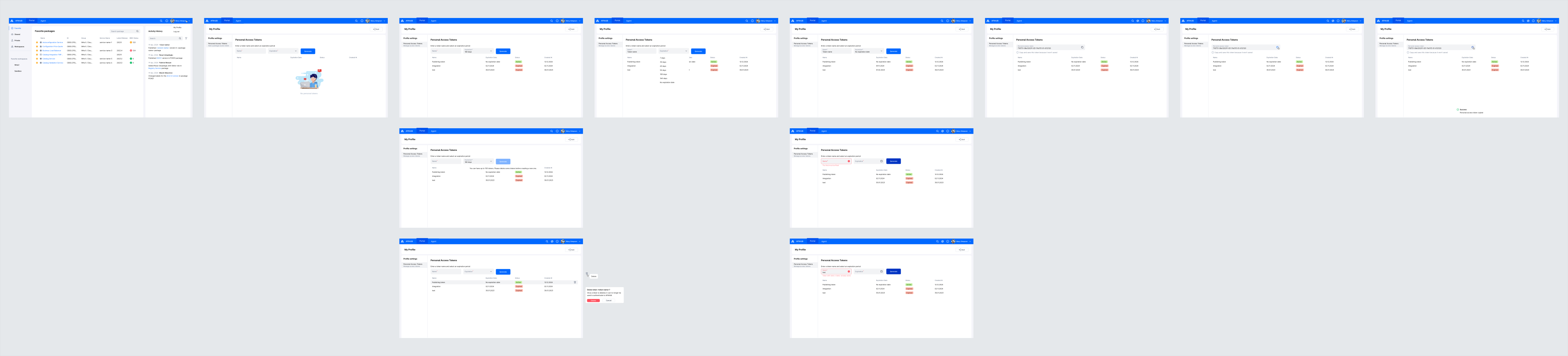
Section titled “Screen View”The My Profile page layout:
- Toolbar — title
My Profile, Exit button (top right). - Left sidebar — section title
Profile Settings; navigation item Personal Access Tokens /Manage access tokens. - Main content — card titled Personal Access Tokens.
The main content contains:
- Generate form — instruction text
Enter a token name and select an expiration period, fields Name and Expiration (autocomplete dropdown), and Generate button. - Tokens table — columns Name, Expiration Date, Status, Created At, and a row action Delete (visible on hover).
- Empty state —
No personal access tokenswhen the user has no tokens.
Expiration dropdown options (in this order):
No expiration date7 days30 days60 days90 days180 days— preselected by default when the form opens365 days
The dropdown supports clearing the current selection (clear icon) and re-selecting a value.
Table formatting:
- Expiration Date and Created At — date format
DD MMM, YYYY(for example,22 Nov, 2026). Hover shows the full timestamp in a tooltip. - Expiration Date —
No expiration datewhen the token has no expiry. - Status — chip with value
active(green) orexpired.
After successful generation, the form is replaced by a read-only Access token field with a copy icon and a warning:
Copy and save this token because it won't be saved.
Execution
Section titled “Execution”List existing personal access tokens
Section titled “List existing personal access tokens”- User opens Personal Access Tokens in My Profile (see Start Point).
- The system shows a table with existing tokens (non-deleted only).
- Name — short name of the token.
- Expiration Date — date after which the token is no longer active, formatted as
DD MMM, YYYY;No expiration datewhen the token has no expiry. - Status —
activeif the current date is before the expiration date (or there is no expiration date);expiredif the current date is equal to or after the expiration date. An expired token cannot be used to authenticate to APIHUB. Displayed as a status chip. - Created At — creation date, formatted as
DD MMM, YYYY(full timestamp available on hover).
- API:
GET /api/v1/personalAccessToken(authenticated session required).
Create a personal access token
Section titled “Create a personal access token”- User opens Personal Access Tokens in My Profile (see Start Point).
- The system checks that the user has fewer than 100 non-deleted tokens. If the limit is reached, the Generate
button is disabled and shows the tooltip on hover:
You can have up to 100 tokens. Please delete some tokens before creating a new one.
- The limit applies to both active and expired tokens that are not deleted.
- User fills the following fields:
- Name — required; must be unique among the current user’s non-deleted tokens.
- If the user clicks Generate with an empty name, the system shows:
The field must be filled. - If the name is not unique (client-side validation), the system shows:
API key with name "<name>" already exists. - If the name is not unique (server-side validation), the API returns HTTP 400 with message:
Personal access token name '<name>' is already used.
- If the user clicks Generate with an empty name, the system shows:
- Expiration — required autocomplete dropdown; options listed in Screen View. API mapping:
No expiration date→daysUntilExpiry = -17 days→7,30 days→30,60 days→60,90 days→90,180 days→180,365 days→365- Default on form open:
180 days
- User clicks Generate.
- The system generates the token, shows the token value in the Access token field (with copy icon and one-time warning), and adds a row to the table (without the secret value).
- API:
POST /api/v1/personalAccessToken- Request body:
{ "name": "<name>", "daysUntilExpiry": <integer> } - Response HTTP 201: token metadata plus
token(secret value, returned only once). - Response HTTP 409 when the 100-token limit is exceeded:
Unable to create personal access token since the limit 100 is exceeded.
- Request body:
- User clicks the copy icon.
- The system copies the value to the clipboard and shows:
Access token copied. - User reloads the page (or navigates away and returns).
- The secret token value is no longer shown; only the token metadata remains in the table.
Delete a personal access token
Section titled “Delete a personal access token”- User opens Personal Access Tokens in My Profile (see Start Point).
- User hovers over the row with the token to delete.
- The system shows the Delete button with tooltip
Delete(while deletion is in progress, the tooltip isDeleting is going now, please wait). - User clicks Delete.
- The system shows confirmation dialog:
- Title:
Delete token <token name>? - Message:
Once a token is deleted, it can no longer be used to authenticate to APIHUB. - Actions: Delete (red, primary destructive), Cancel, and close icon (X) in the dialog header.
- User clicks Delete (or Cancel / X to dismiss without deleting).
- The system soft-deletes the token. The deleted token can no longer be used to authenticate to APIHUB and no longer appears in the list.
- API:
DELETE /api/v1/personalAccessToken/{id}— HTTP 204 on success.
Mockups
Section titled “Mockups”