Agent Overview
APIHUB Agent allows you to discover the environment for the relevant API documents, publish them to APIHUB Portal and show changes from previous versions of the documents.
Functionality Overview
Section titled “Functionality Overview”Discovery Services
Section titled “Discovery Services”The discovery process allows you to find all API documents in the selected namespace of the cloud service.
- Open APIHUB Agent.
- Select cloud service where the Agent is installed and appopriate namespace.
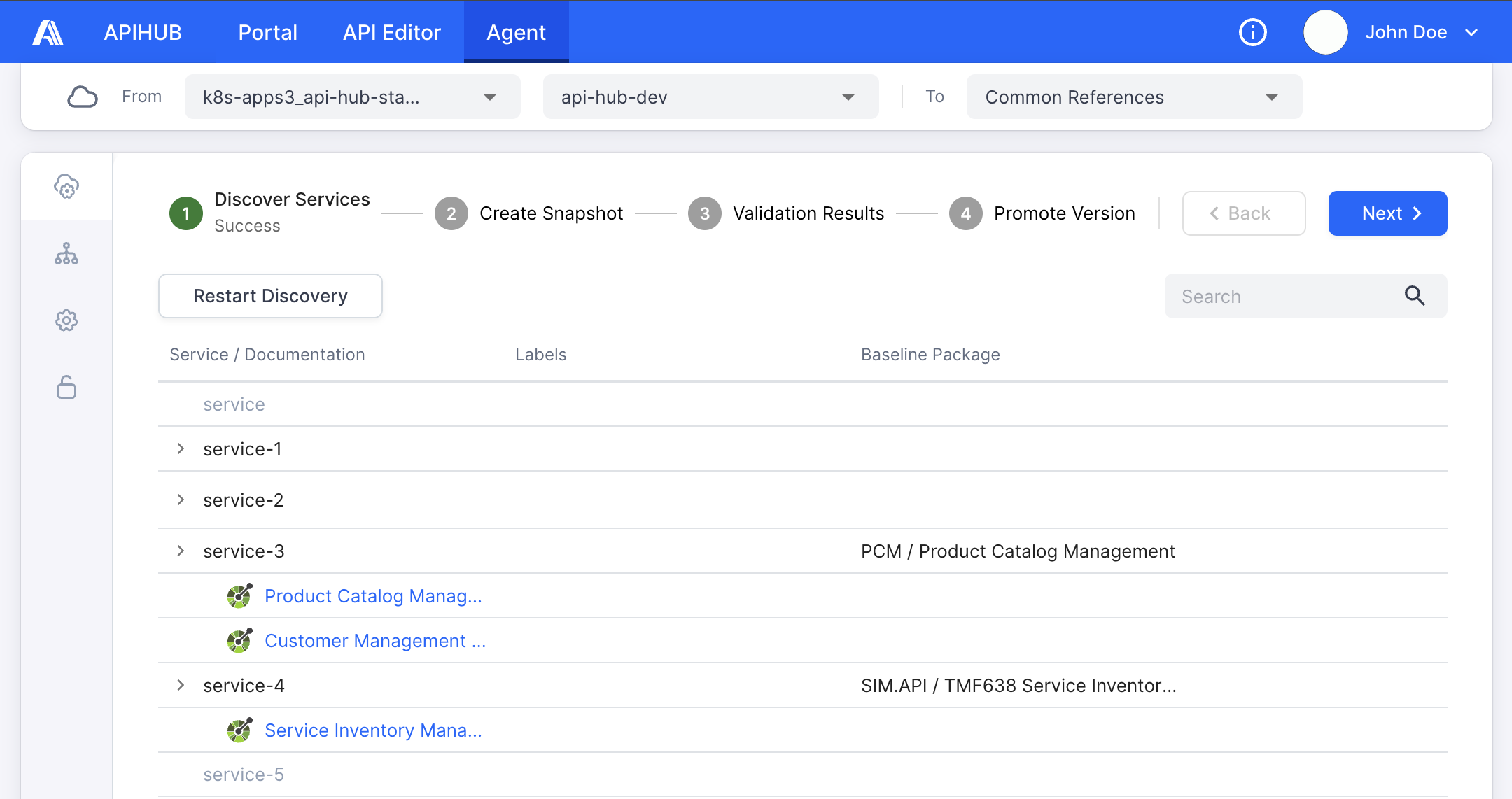
- To start the discovery process, click Run Discovery. The discovery process finds all services in the current namespace and API documents in each service.
When the discovery process completed, you will see list of all services and their API specifications. For each found service you may habe baseline package. Baseline package is a package from APIHUB Portal where you can promote your discovered API soecifcations.
You can open and view found API document by clicking on it.
Snapshot Creation
Section titled “Snapshot Creation”To make the following API contracts validations and comparison, Agent needs to create a snapshot of the found API documents as a draft version in Portal.
- Navigate to the Create Snapshot step. The window contains services with API documents found in the previous steps; services without API specifications are not displayed here.
- Select service(s) for which snapshots need to be created.
- Fill Snapshot Name field. This name will be used to create a draft version in Portal. Subsequently, snapshot can be deleted.
- Fill Baseline (Release Version) field - APIHUB will compare the contracts of the selected k8s services with this version of the reference data.
- Click Create Snapshot button.
When the snapshots are created, the publishing status will be displayed for the services for which the snapshots were created.
You can open a created snapshot in Portal by clicking on the View Snapshot link that appears when you hover over the row with service.
Validation Results
Section titled “Validation Results”After the snapshot is created, you can check the results of the comparison between the created snapshot and the specified baseline version (reference data in Portal).
To see the results go to Validation Results step. For each service for which a snapshot was created, APIHUB Agent displays the following information:
-
BWC status - number of backward compatibility errors in the current snapshot compared to the baseline version. If the baseline version was not found in APIHUB, BWC status will be: Baseline version not found.
-
Changes - number of breaking, non-breaking, deprecated, unclassified and annotation changes of the current snapshot compared to the baseline version.
-
Breaking change is a change that breaks backward compatibility with the previous version of API. For example, deleting an operation, adding a required parameter or changing the type of a parameter are breaking changes.
-
A change requiring attention is a change that breaks backward compatibility according to the rules:
- operation or entity in the operation was annotated as deprecated in at least two previous consecutive releases and then it was deleted
- operation is marked as no-BWC.
-
Deprecating change is a change that annotates an operation, parameter or schema as deprecated. Removing a “deprecated” annotation is also considered a deprecating change.
-
Non-breaking change is a change that does not break backward compatibility with the previous version of API. For example, adding a new operation or an optional parameter is a non-breaking change.
-
Annotation change is a change to enrich the API documentation with information that does not affect the functionality of the API. For example, adding/changing/deleting descriptions or examples is an annotation change.
-
Unclassified change is a change that cannot be classified as any of the other types.
You can open comparison of the current snapshot with the baseline version in Portal to see changes in details. To do this, click on the View Changes link that appears when you hover over the row with service.
Promote Version
Section titled “Promote Version”You can publish found API documents to Portal, i.e. “promote version”. This version can be used as a baseline version for the next snapshots’ creation.
- Open Promote Version step. This step only displays services for which a snapshot has been created and which have a baseline package in the Portal.
- Select required service(s). You cannot select a service if you do not have appropriate grants for the baseline package of the service.
- Specify Version field - this will be the new version of the reference data in the Portal. If this version has already been published, the promote operation will override the previously published data. The Previous Version field will be predefined with value of baseline version specified during snapshot creation.
- Specify Status field - this will be the status of the promoted (published) version in Portal.
- Click Promote Version.
All labels for promoted services will also be published to APIHUB as version labels.
When the version is promoted, publish status will be displayed. You can open the published version in Portal by clicking on the View Baseline link that appears when you hover over the row with service.
Snapshots History
Section titled “Snapshots History”To see all created snapshots in the current namespace, go to the Snapshots tab. The following information is displayed:
- Snapshot name and its baseline version.
- Date of snapshot creation.
- Service name for which snapshot was created, BWC status and changes. You can open comparison of the current snapshot with the baseline version in Portal to see changes in details. To do this, click on the View Changes link that appears when you hover over the row with service. If a baseline version was not found for the service, the View Changes link will not be available.
Snapshot Automation
Section titled “Snapshot Automation”APIHUB Agent allows you to automatically run discovery of services and API documents daily, and create snapshots for all discovered documents:
- Go to the Automation tab.
- Select the On schedule option.
- Specify the name with which a snapshot will be created in the Snapshot Name field.
- Fill in the Baseline (Release version) field.
- Specify the start time for the discovery process in the Discovery Time field.
- Click Save.
If you need to disable the auto-discovery process, select the None option.